Linux SFTP Server on Google Cloud
Linux SFTP Server on Google Cloud is a pre-configured Google Cloud image that provides a ready-to-use, secure file-transfer (SFTP) server in the cloud. Launch it, connect with an SFTP client such as FileZilla, and transfer files securely — no manual SFTP configuration required.
It is built for teams and applications that need a simple, secure way to move files to and from the cloud.
What’s included
Section titled “What’s included”- A hardened SFTP server for secure file transfer over SSH
- A ready-to-use
sharedirectory (/data/elm/share) for exchanging files - Regular image updates with the latest security patches
Launch on Google Cloud
Section titled “Launch on Google Cloud”- Find and subscribe to the Linux SFTP Server image on the Google Cloud Marketplace.
- Launch a VM instance from the image in a region close to you.
- Make sure the VM instance allows inbound SFTP (port 2222) traffic so you can connect with an SFTP client.
Connect with FileZilla
Section titled “Connect with FileZilla”Once the VM instance is running, connect using an SFTP client such as FileZilla:
- Host:
sftp://<public IP address> - Port:
2222 - Username:
elm - Password: your instance ID
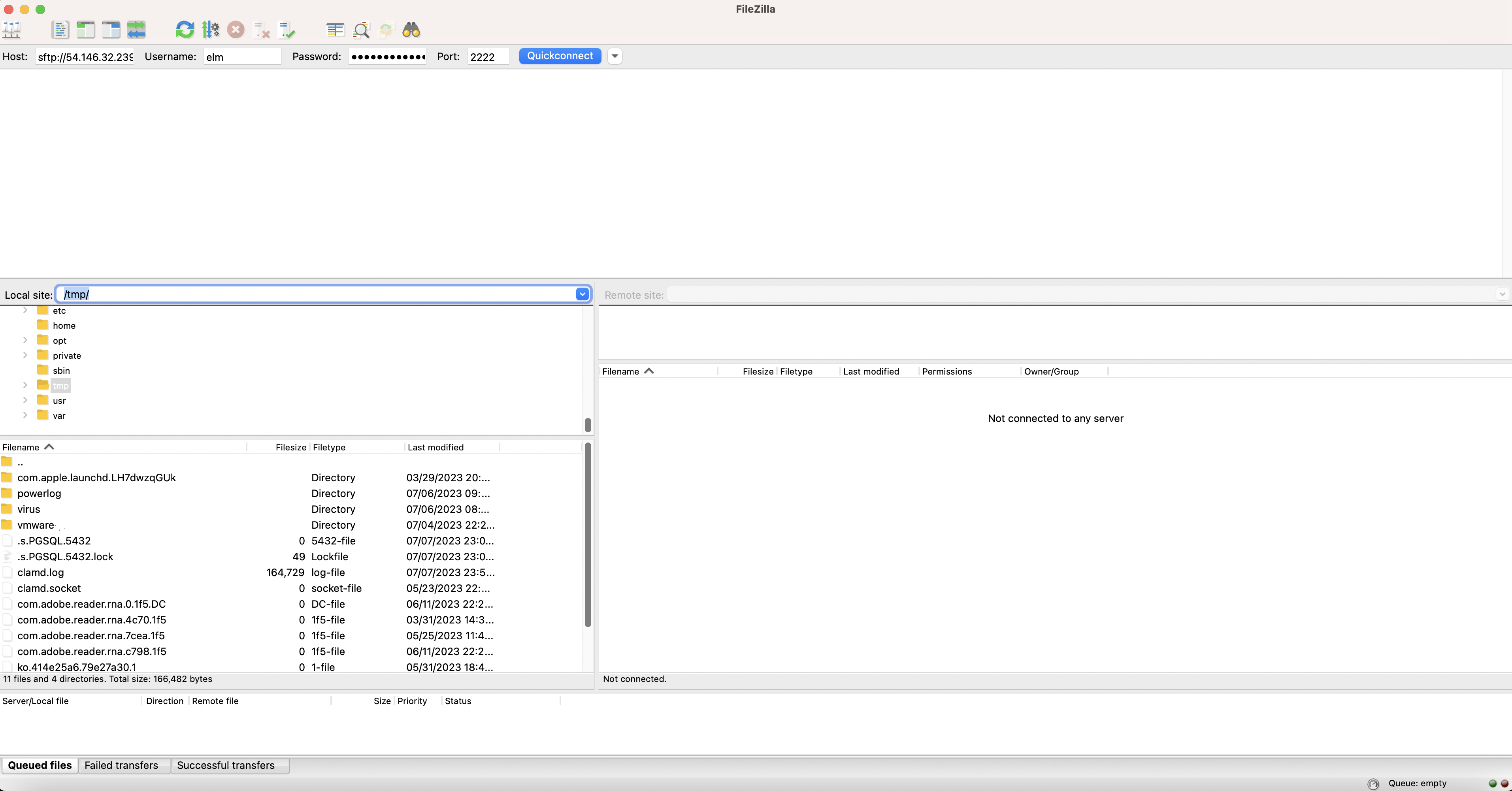
Files are exchanged through the share directory (/data/elm/share on the server). For a step-by-step walkthrough with screenshots, see Connect to Linux SFTP Server on Google Cloud.
Support
Section titled “Support”Questions or need help getting started? Contact support@elmcomputing.io.