Connect to Linux GUI Desktop on Azure
Steps to connect to the remote Linux GUI desktop
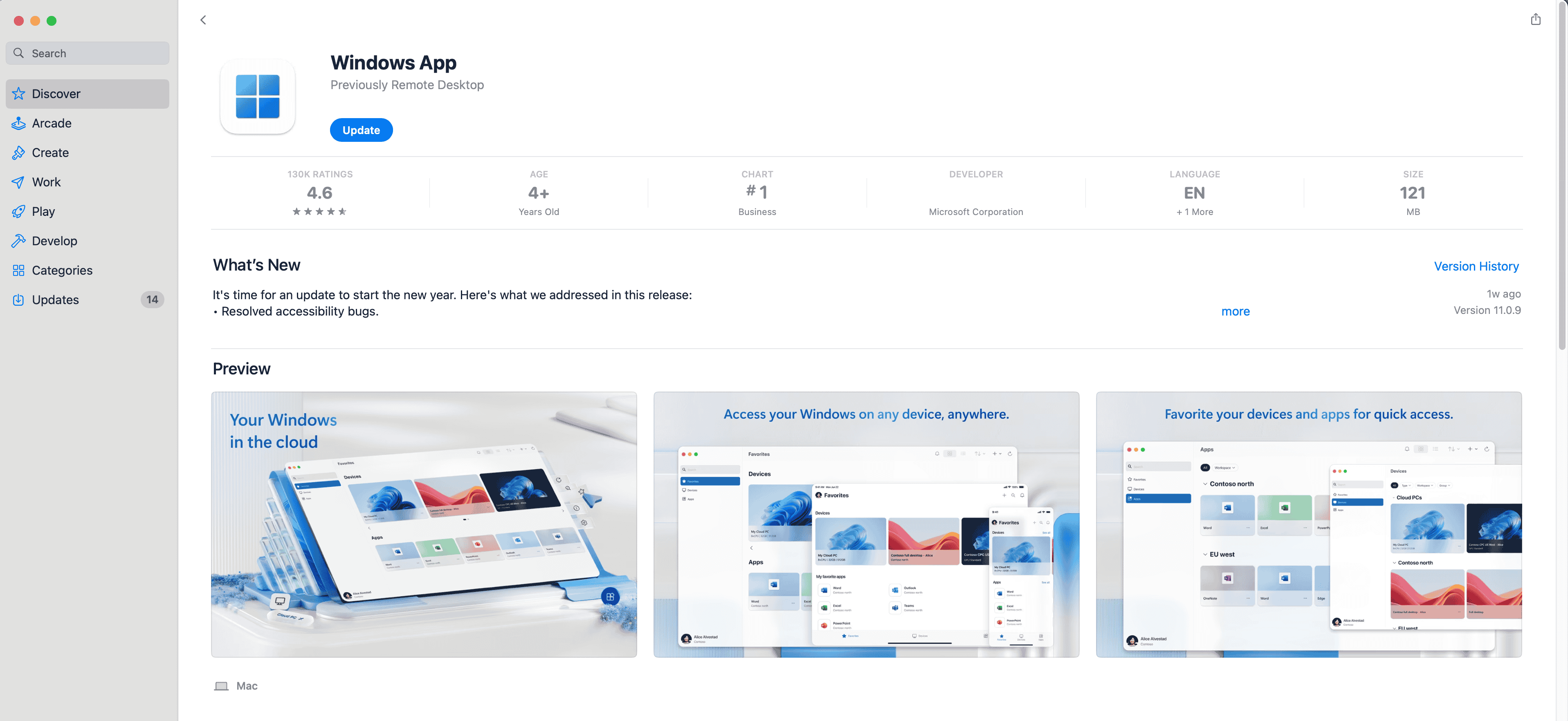
Section titled “Steps to connect to the remote Linux GUI desktop”Install Microsoft Windows App
Section titled “Install Microsoft Windows App”The Windows App can be found from App Store (for Mac users).
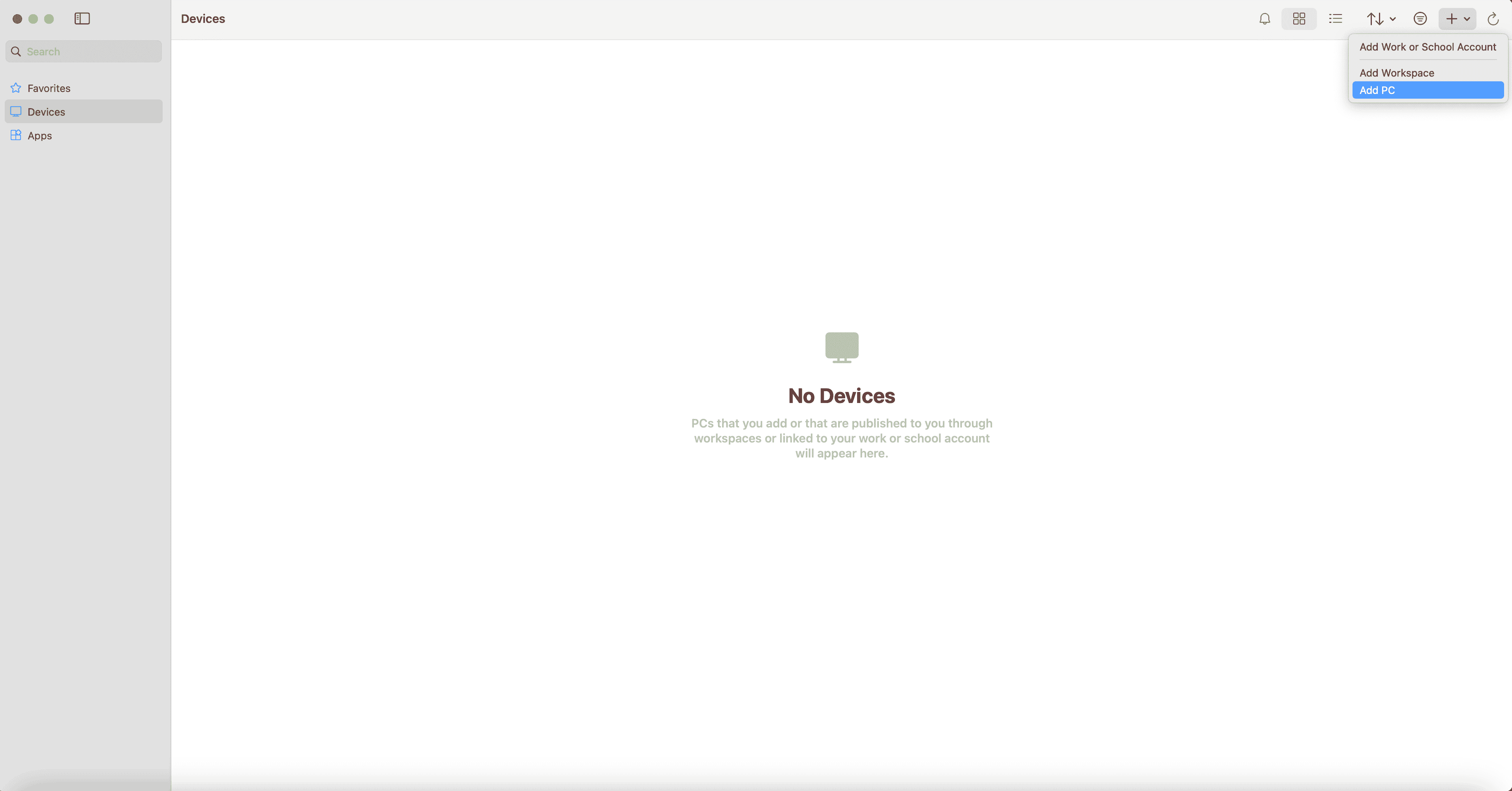
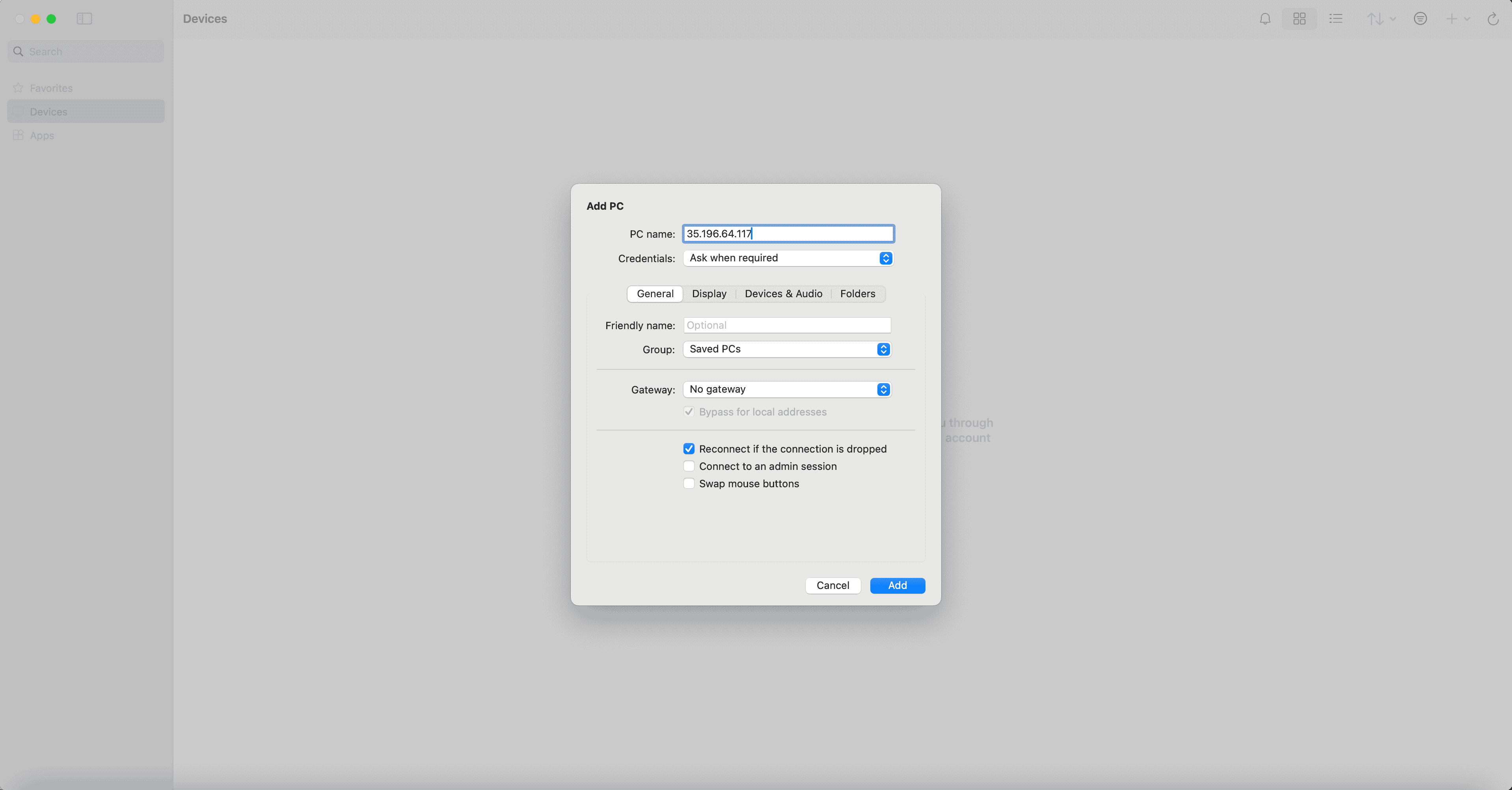
Start Windows App and Add PC
Section titled “Start Windows App and Add PC”The public address (like 54.198.198.85) is used for the PC name.
Add a User Account
Section titled “Add a User Account”The default username is elm and the password is the last 12 digits of the vmId.
Accept the certificate
Section titled “Accept the certificate”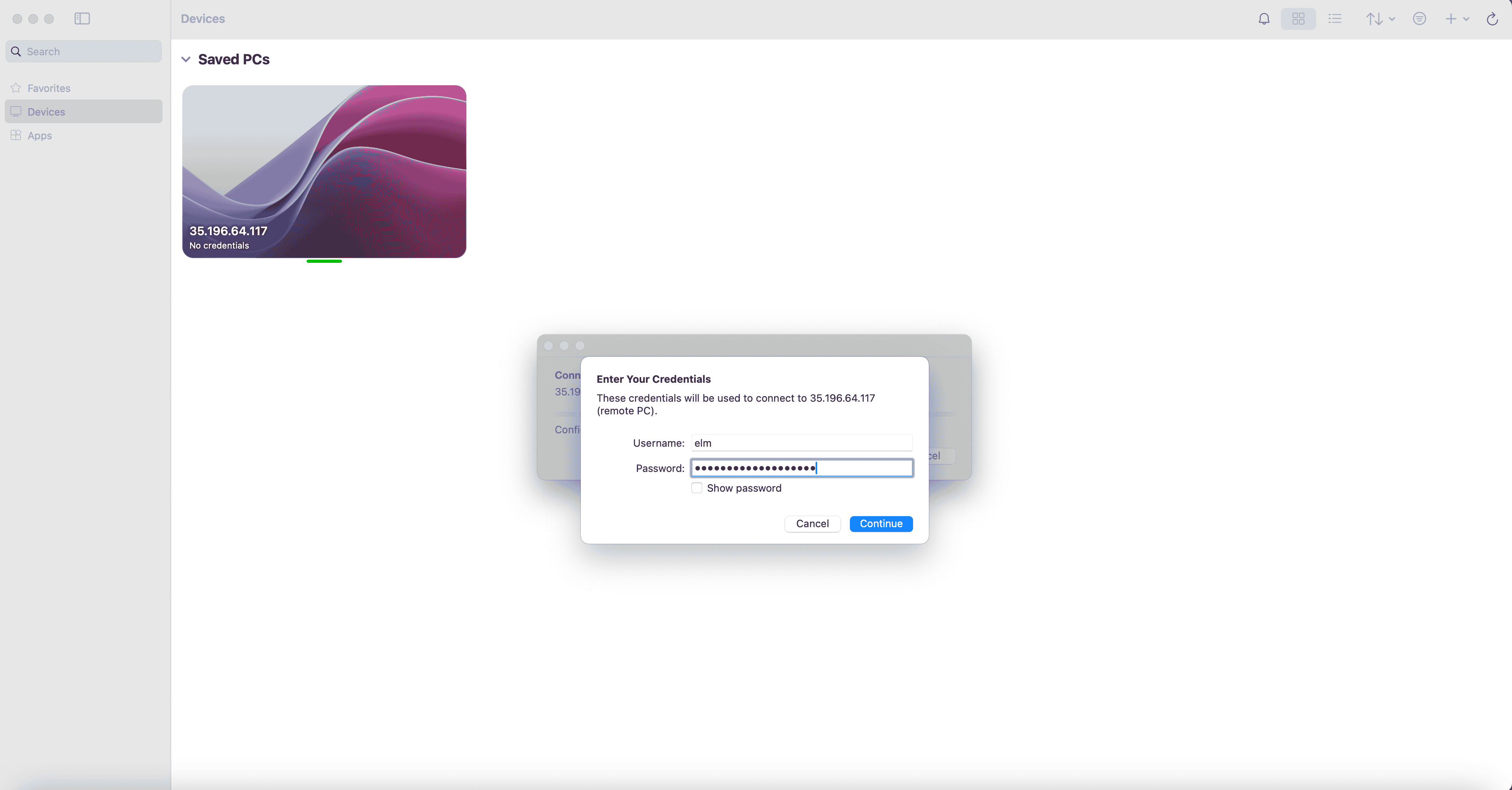
The PC is added
Section titled “The PC is added”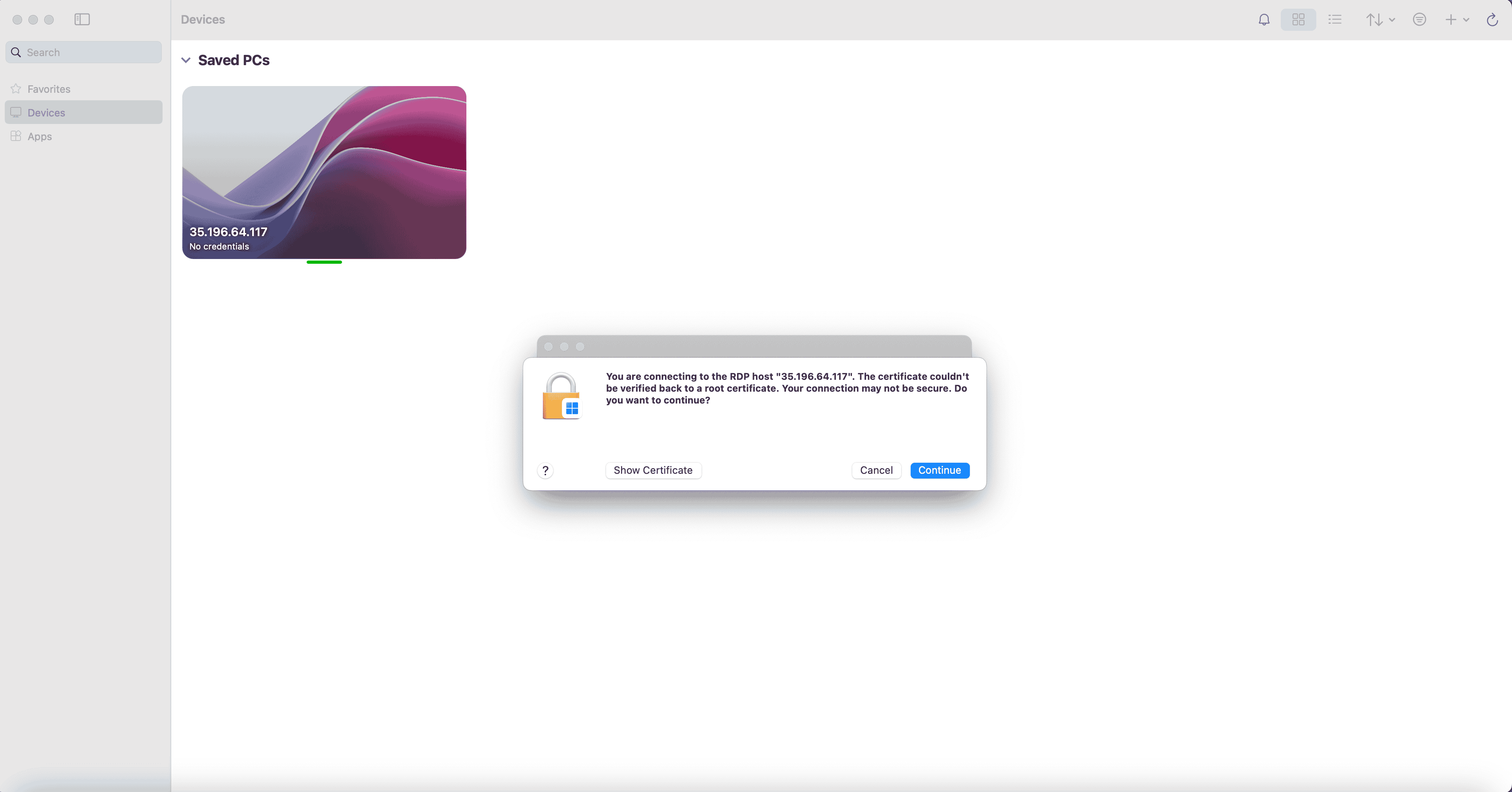
Connect to the remote Linux Desktop
Section titled “Connect to the remote Linux Desktop”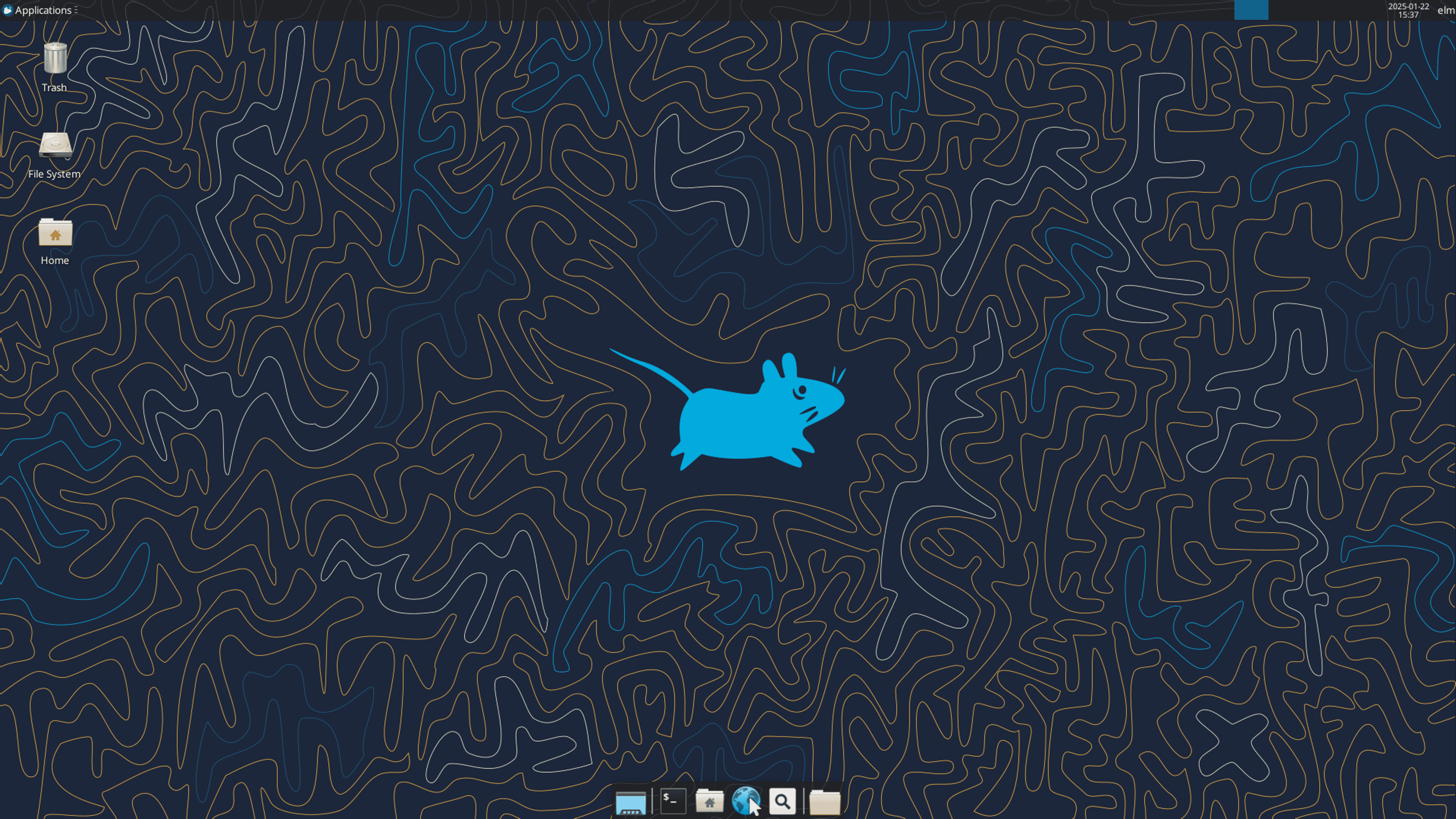
Log out of the Linux GUI Desktop
Section titled “Log out of the Linux GUI Desktop”Select Logout
Section titled “Select Logout”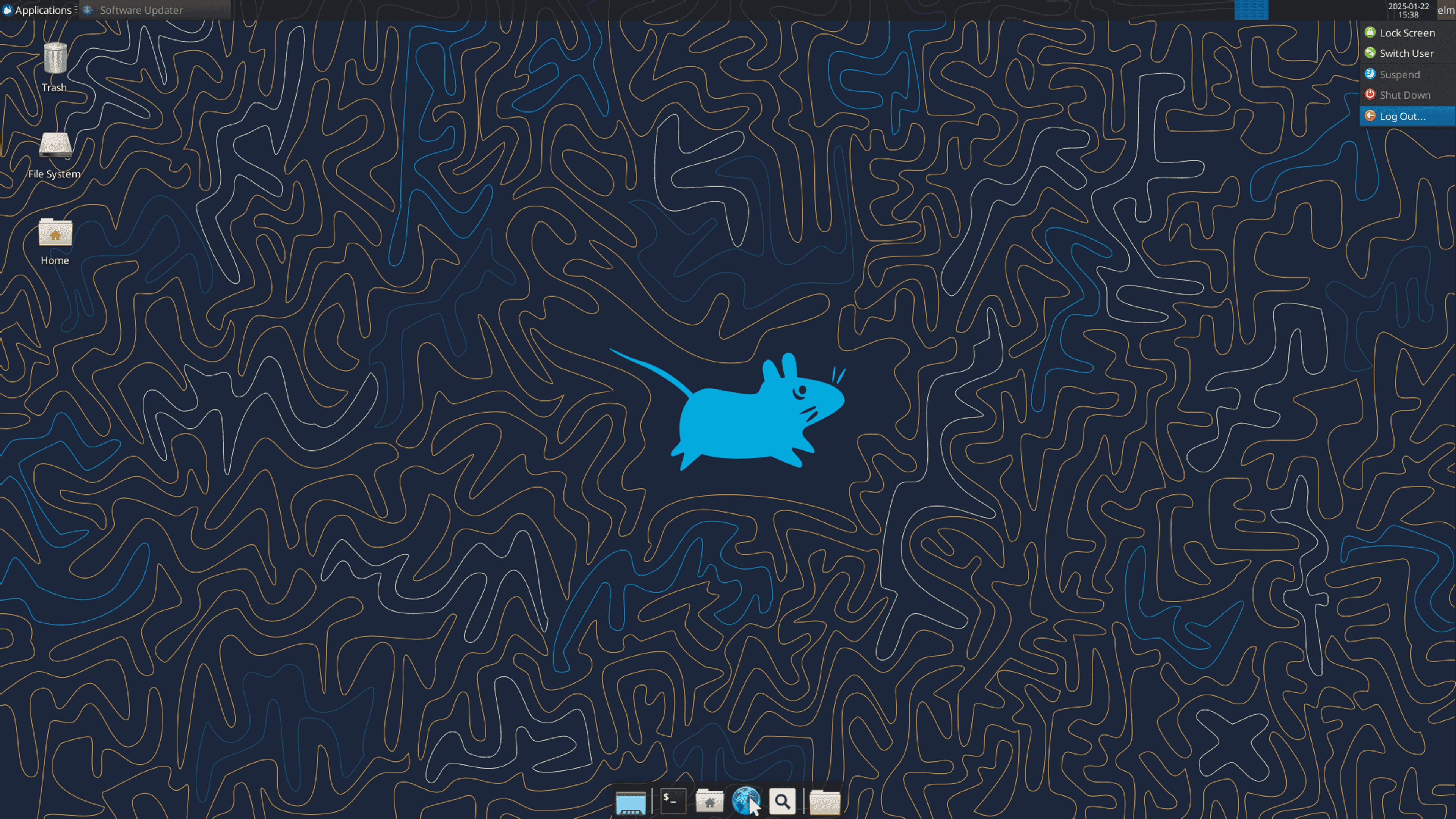
Click Logout
Section titled “Click Logout”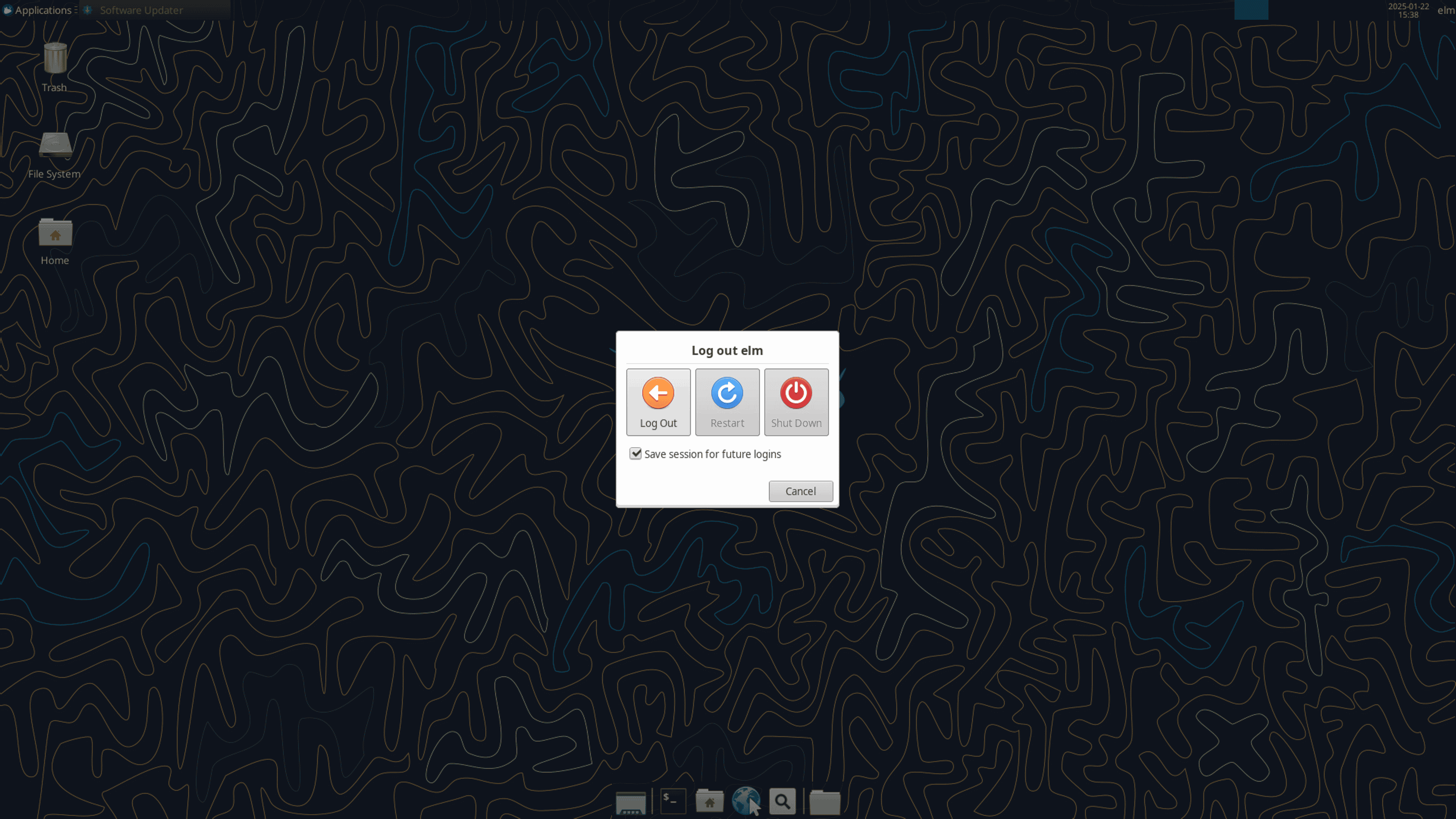
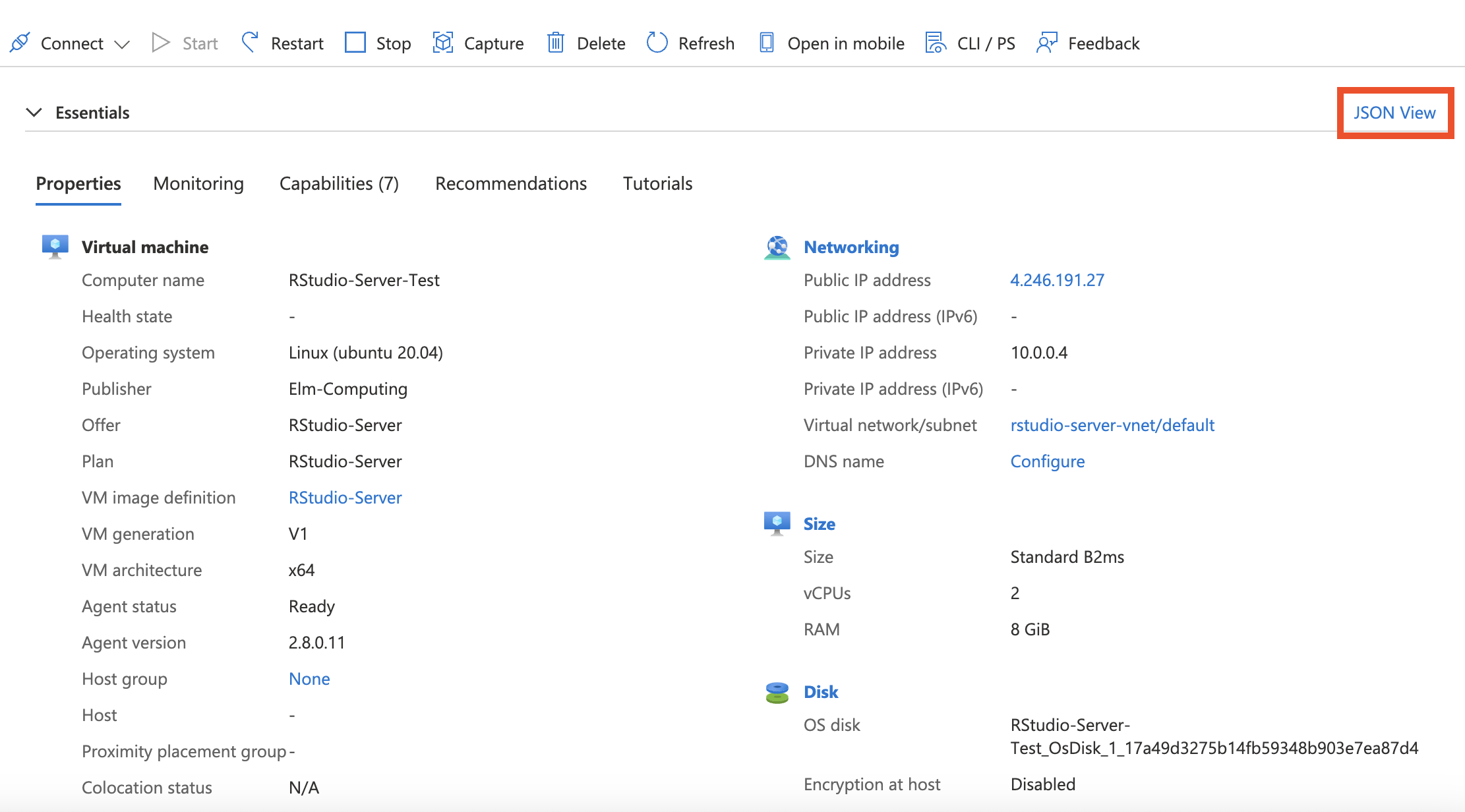
Finding the password (vmId)
Section titled “Finding the password (vmId)”The default username is elm and the password is the last 12 digits of the VM’s vmId. The vmId can be found in the Azure VM’s JSON View and has the form 1f61b751-037a-489e-8638-3fc32fe6894d; only the last 12 digits (3fc32fe6894d) are used as the password.