RStudio Server on Azure
RStudio Server on Azure is a pre-configured Azure VM image that gives you a ready-to-run RStudio Server environment in the cloud. Launch it from the Azure Marketplace, open it in your browser, and start working in R immediately — no manual installation or configuration required.
It is built for data scientists, statisticians, researchers, and analysts who want a reproducible R workbench on Azure without spending time on setup and package management.
What’s included
Section titled “What’s included”- Thousands of pre-installed R packages spanning data science, machine learning, statistics, bioinformatics, finance, spatial analysis, time series, and more
- Regular image updates with the latest R packages and security patches
See the latest release notes and full package list for the current versions and the complete set of installed R packages.
Launch on Azure
Section titled “Launch on Azure”- Find and subscribe to the RStudio Server image on the Azure Marketplace.
- Create a virtual machine from the image in a region close to you, choosing a VM size that fits your workload.
- Make sure the VM allows inbound HTTP (port 80) traffic so the server is reachable from your browser.
Access RStudio Server
Section titled “Access RStudio Server”Once the virtual machine is running, open its public IP address in your browser. For example, if the IP address is 10.11.12.13, go to http://10.11.12.13 to reach the sign-in page:
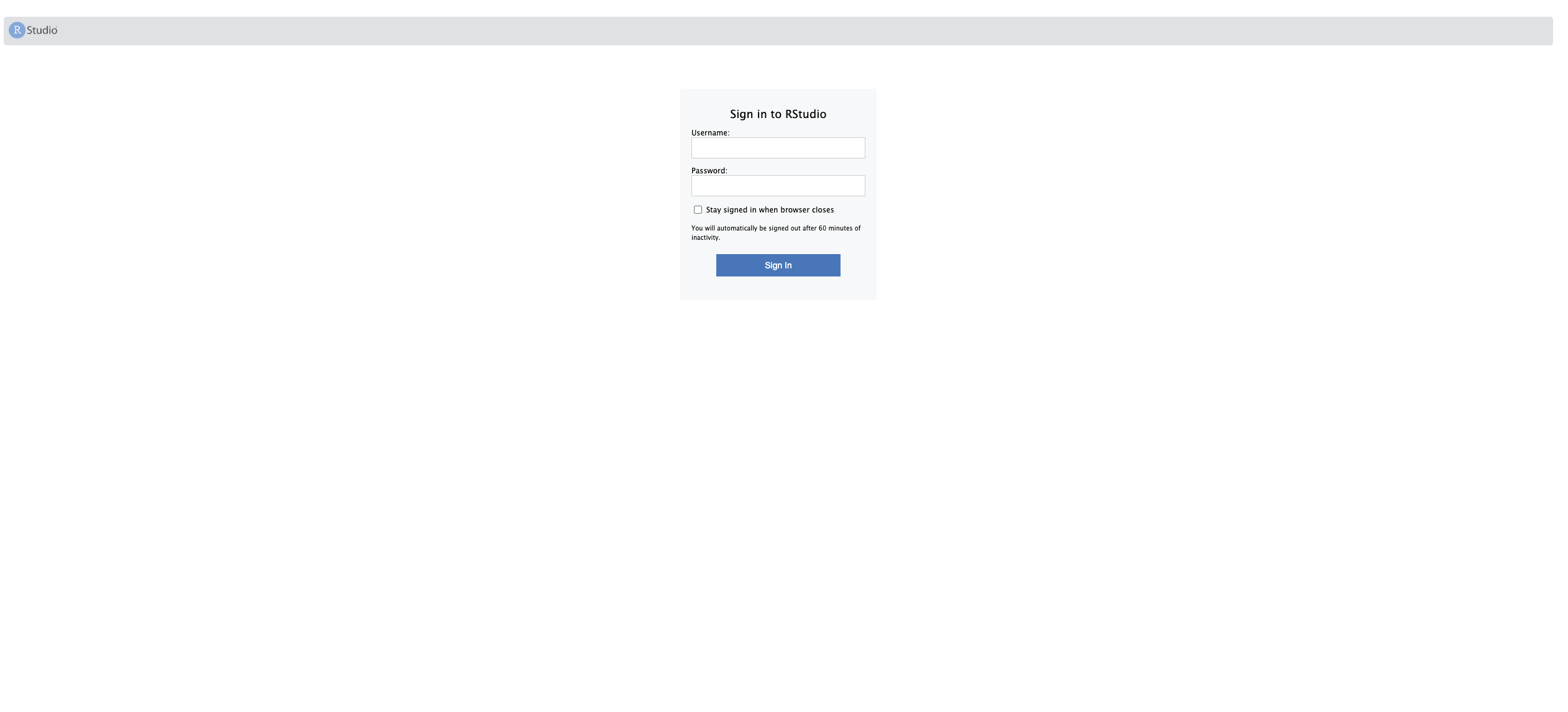
Sign in with the default credentials:
- Username:
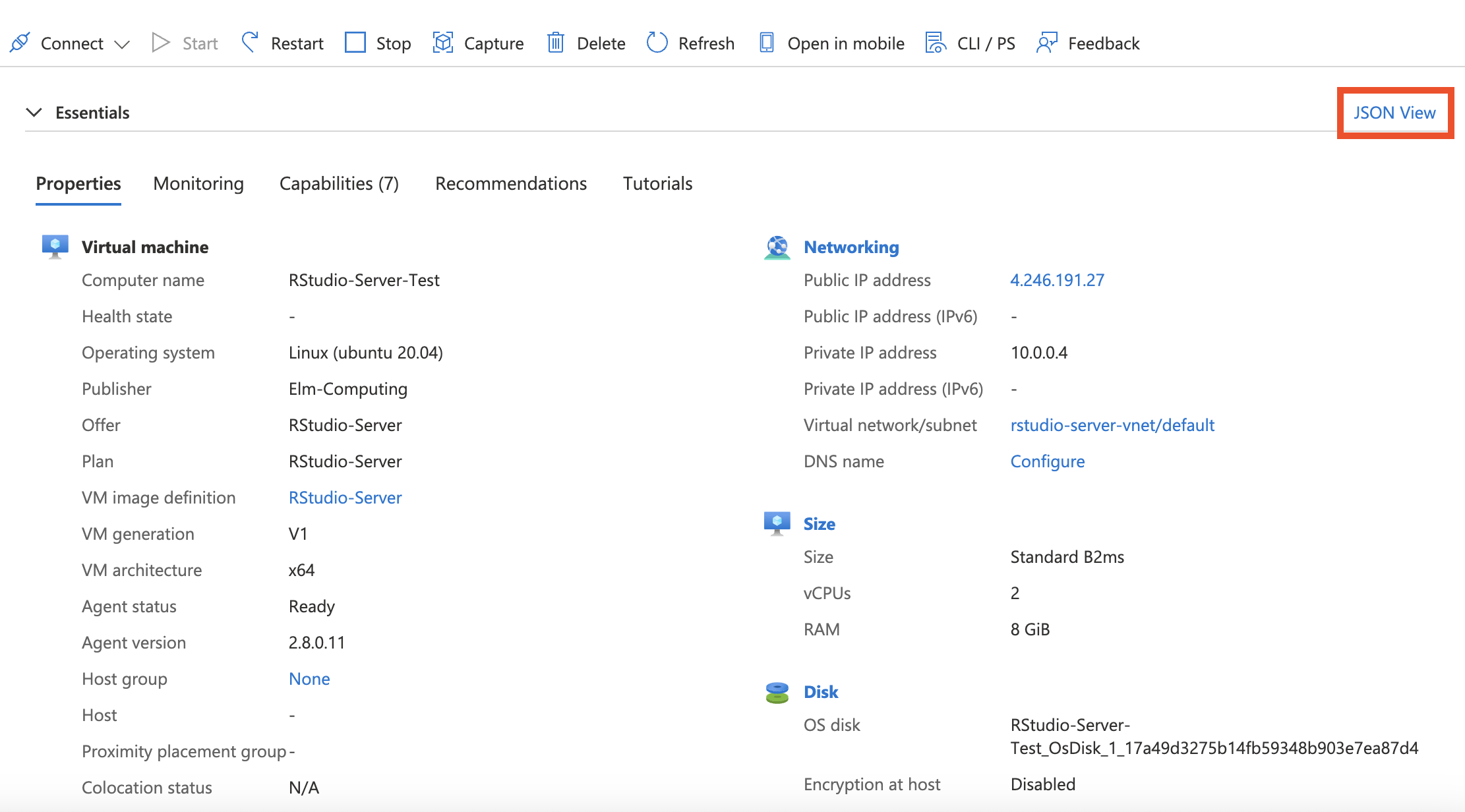
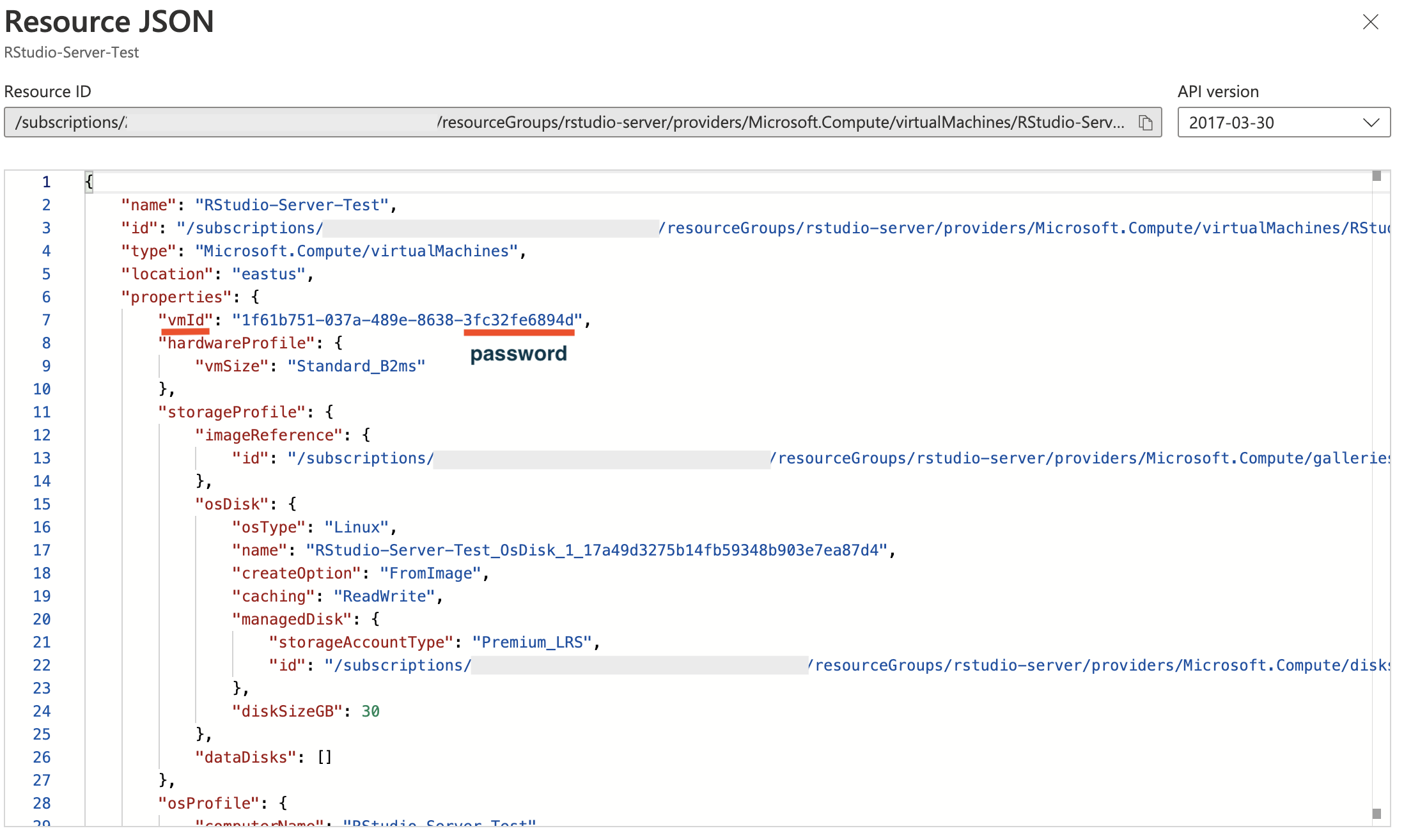
ruser - Password: the last 12 digits of the VM’s
vmId(see below)
The vmId is shown in the Azure VM’s JSON View and has the form 1f61b751-037a-489e-8638-3fc32fe6894d; use only the last 12 digits (3fc32fe6894d) as the password.
Support
Section titled “Support”Questions or need help getting started? Contact support@elmcomputing.io.