Connect to Linux SFTP Server on Azure
Steps to connect to the Linux SFTP Server
Section titled “Steps to connect to the Linux SFTP Server”Install FileZilla
Section titled “Install FileZilla”FileZilla can be downloaded here
Connect to the SFTP Server
Section titled “Connect to the SFTP Server”- Host: sftp://public_address (like sftp://54.146.32.239)
- Username: elm
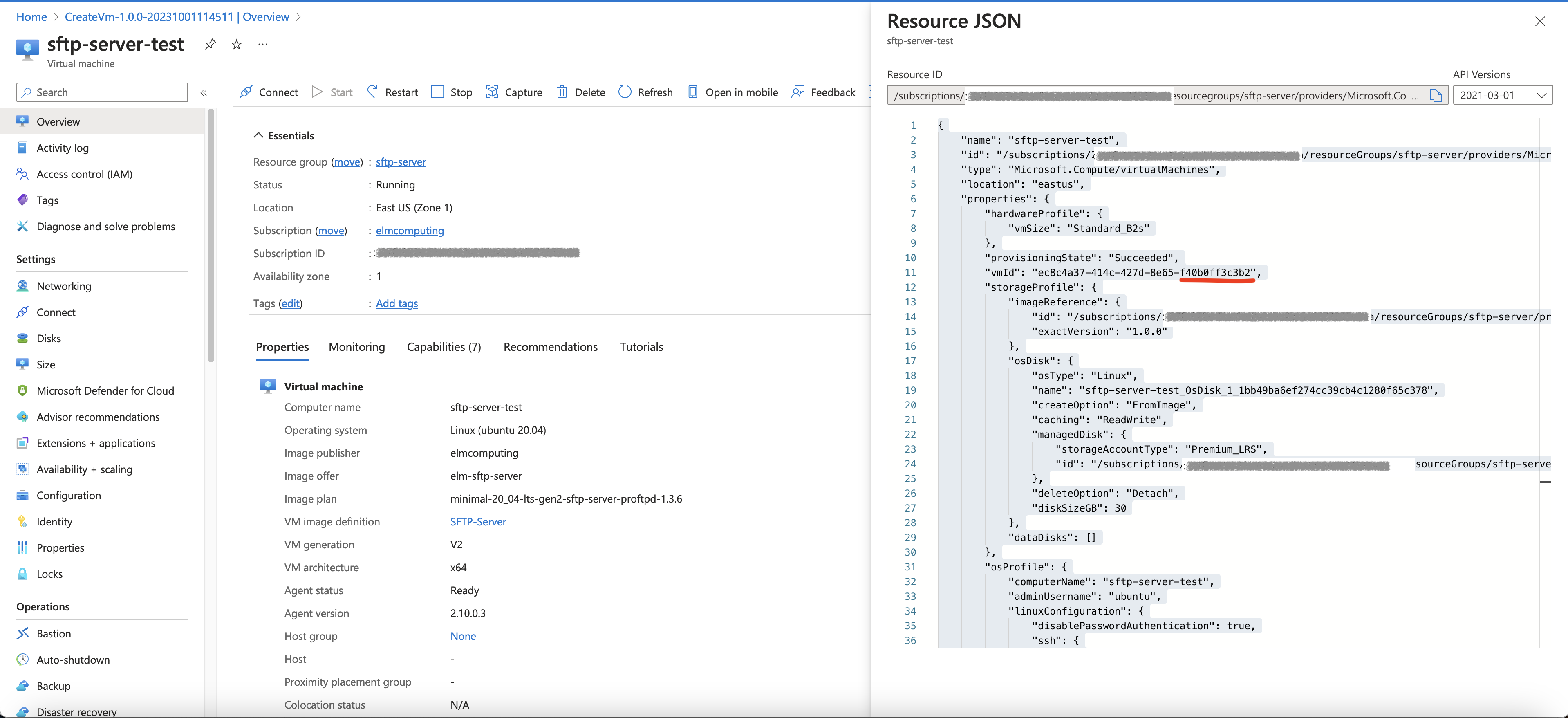
- Password: the last 12 digits of the vmId. The vmId can be found in the JSON View with the form of 1f61b751-037a-489e-8638-3fc32fe6894d. Only the last 12 digits 3fc32fe6894d are used as the password.
- Port: 2222
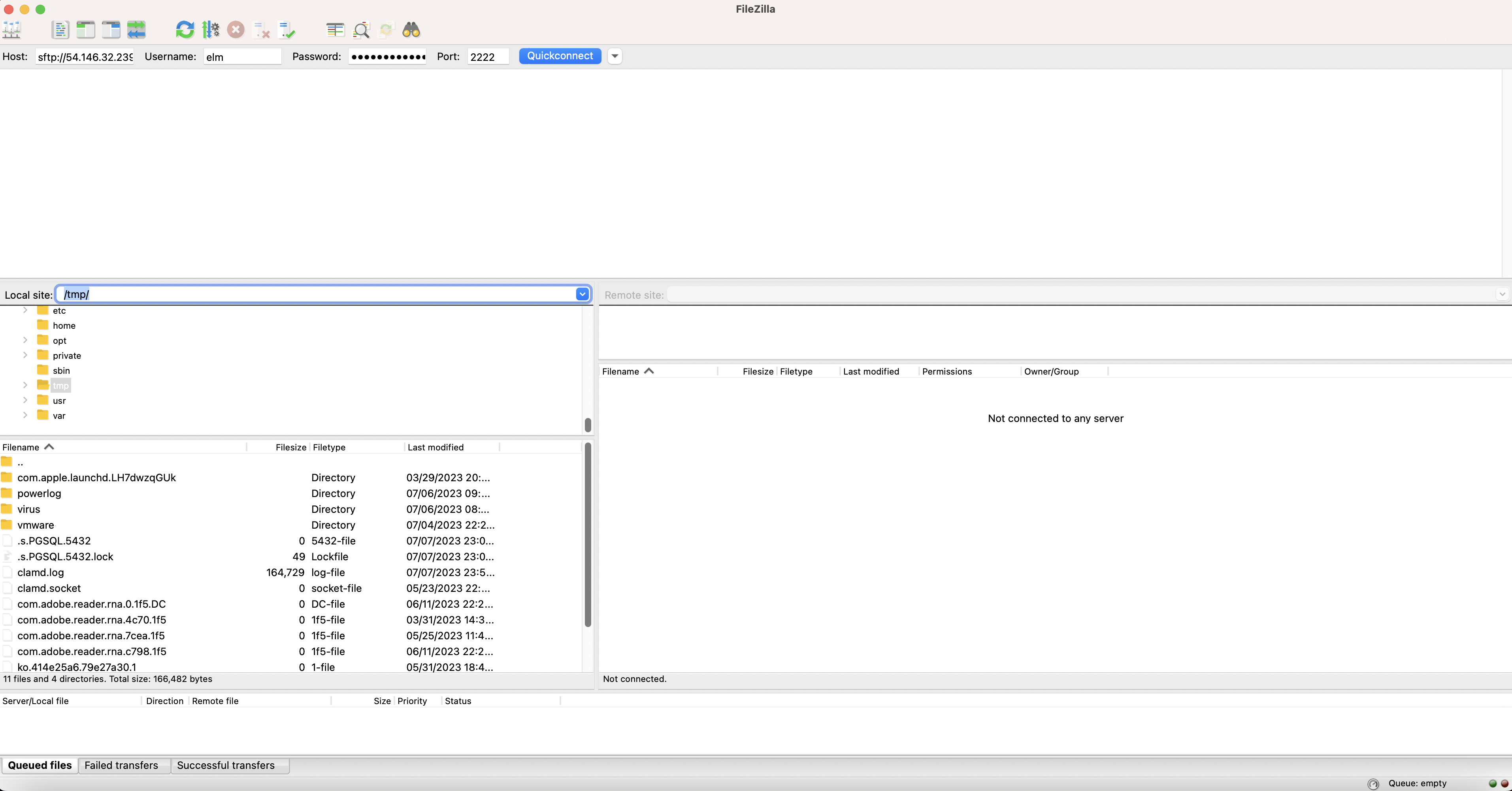
Selecting “Always trust this host, add this key to the cache” will avoid showing this message.
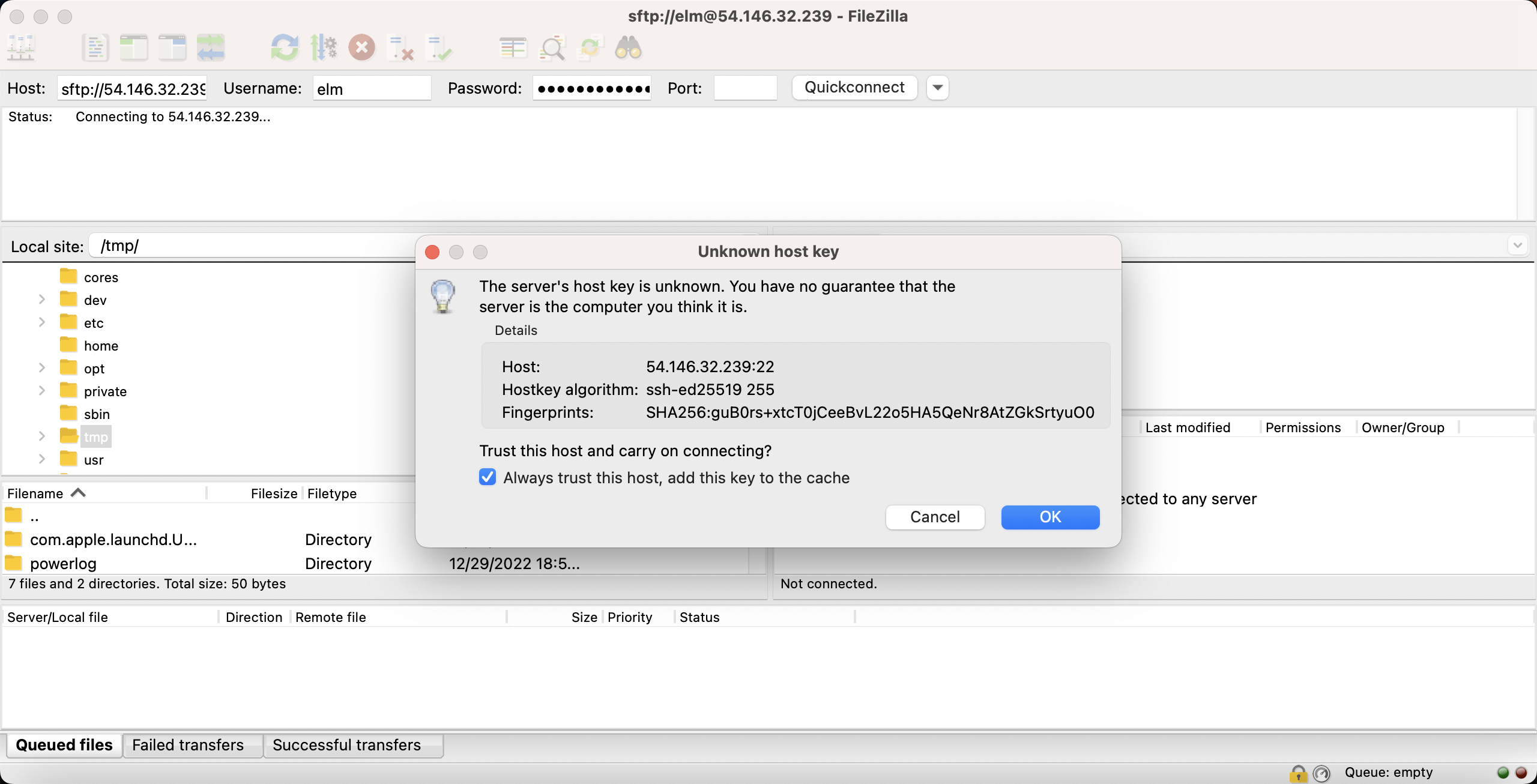
Once the server is connected, the directory share is used to exchange files.
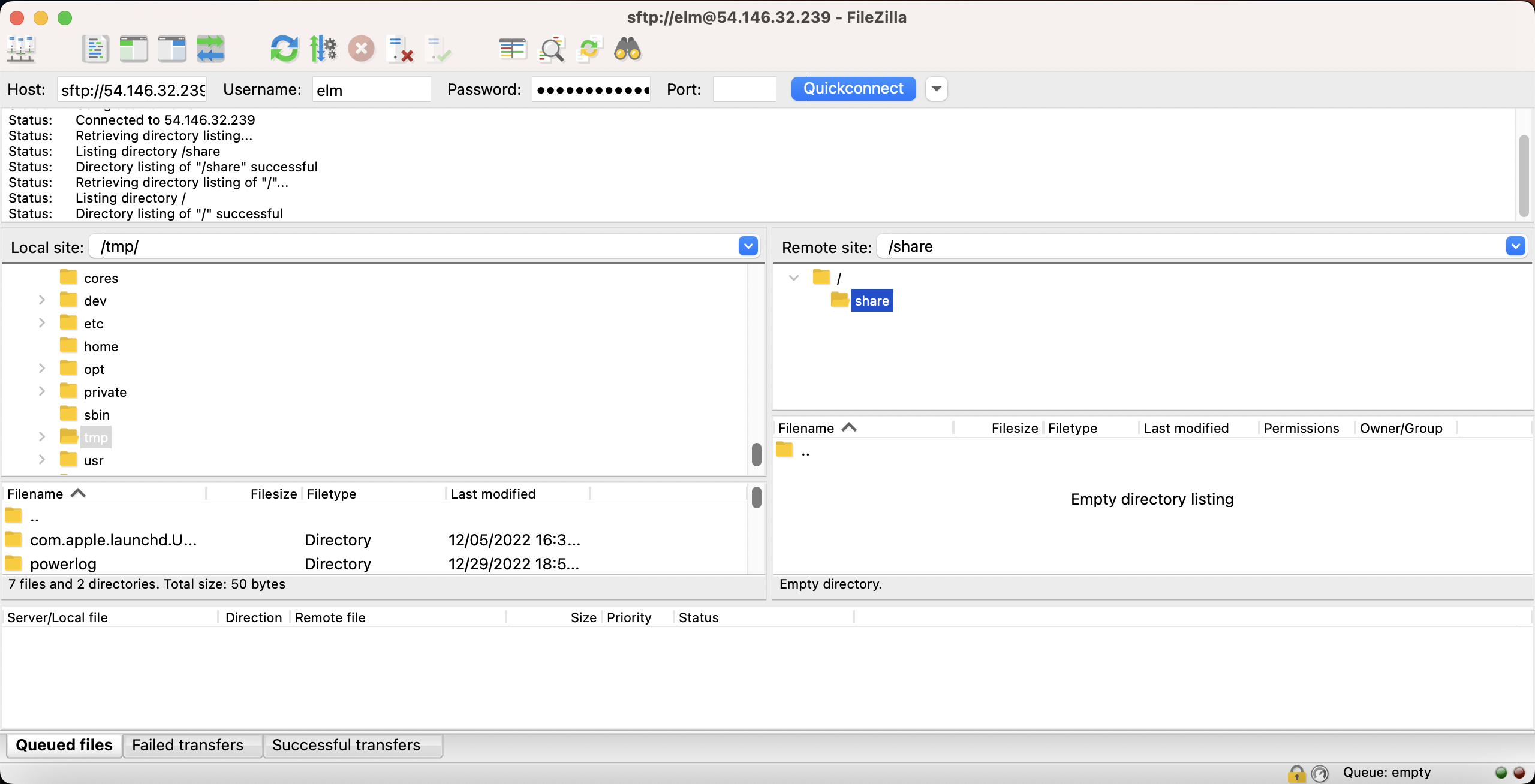
Location of shared folder
Section titled “Location of shared folder”On the server, the shared folder is /data/elm/share.
Getting password
Section titled “Getting password”Azure VM console
Section titled “Azure VM console”The json view can be reached from the VM console.
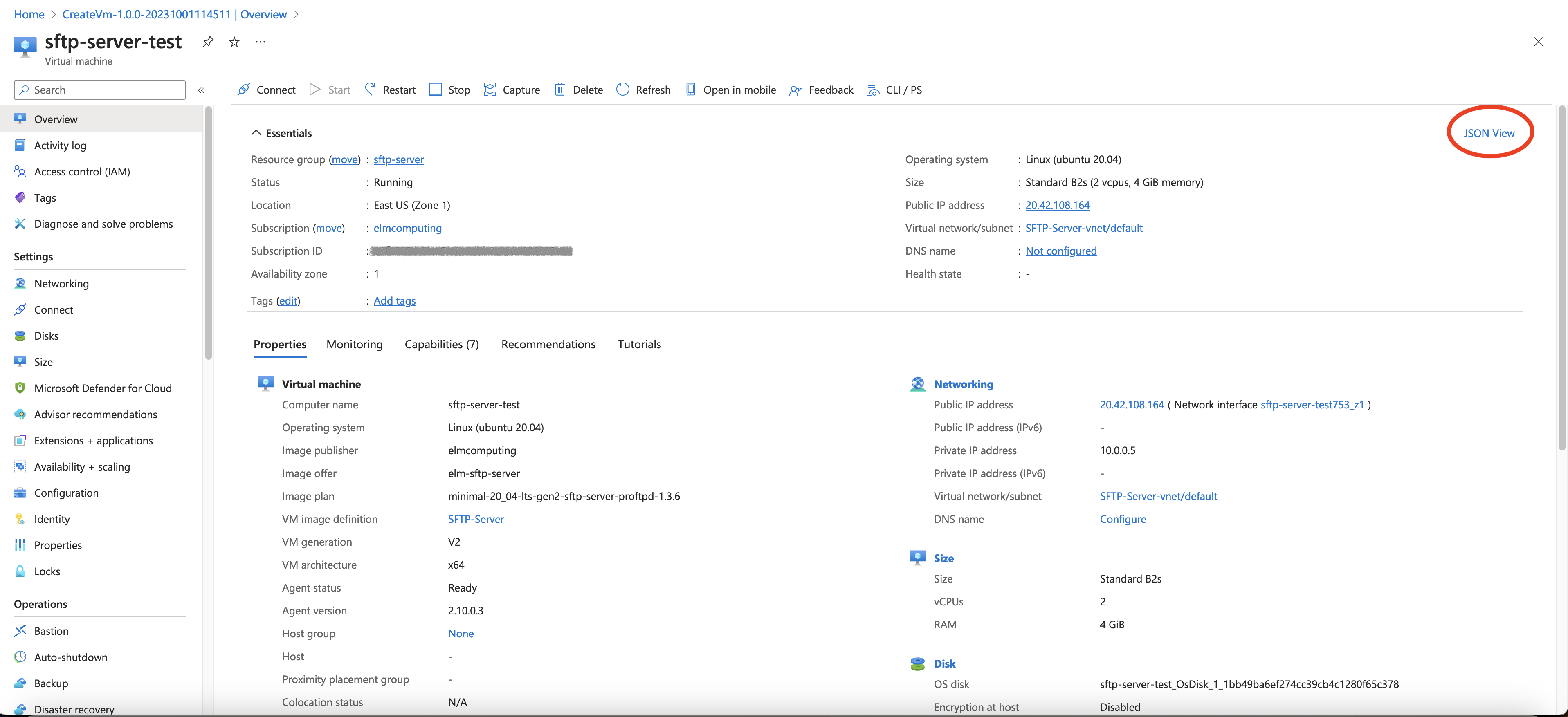
JSON View
Section titled “JSON View”The password is the last 12 digits of the vmId.