RStudio Server with AI Assistant on AWS
This AMI offers two ways to set up and use:
- RStudio IDE with AI Assistant within Linux GUI Desktop
- Regular RStudio Server access
1. RStudio IDE with AI Assistant within Linux GUI Desktop
Section titled “1. RStudio IDE with AI Assistant within Linux GUI Desktop”To connect to the Linux GUI Desktop on your EC2 instance using an RDP client:
- Use the public IP address of the instance as the PC name.
- The default username is
ruser. - The password is the EC2 instance ID, which follows the format
i-0c7xxxxxxxxxxxxxx. Replace this with your actual instance ID found in the AWS Management Console under the Instances section. - Proceed to connect. You may receive a security warning about the certificate; you can safely choose to continue.
RDP Client Downloads:
Section titled “RDP Client Downloads:”- For Mac: Windows App
- For Windows: Windows App
This setup allows you to remotely access your instance using the Remote Desktop Protocol (RDP) with the provided credentials.
Connection Steps
Section titled “Connection Steps”Detailed steps for connecting to the Linux GUI Desktop are available here.
Launch RStudio IDE
Section titled “Launch RStudio IDE”Once connected, start the RStudio IDE with AI Assistant:
- Navigate to:
Applications -> Development -> RStudio
- This will launch the RStudio IDE within your Linux environment.
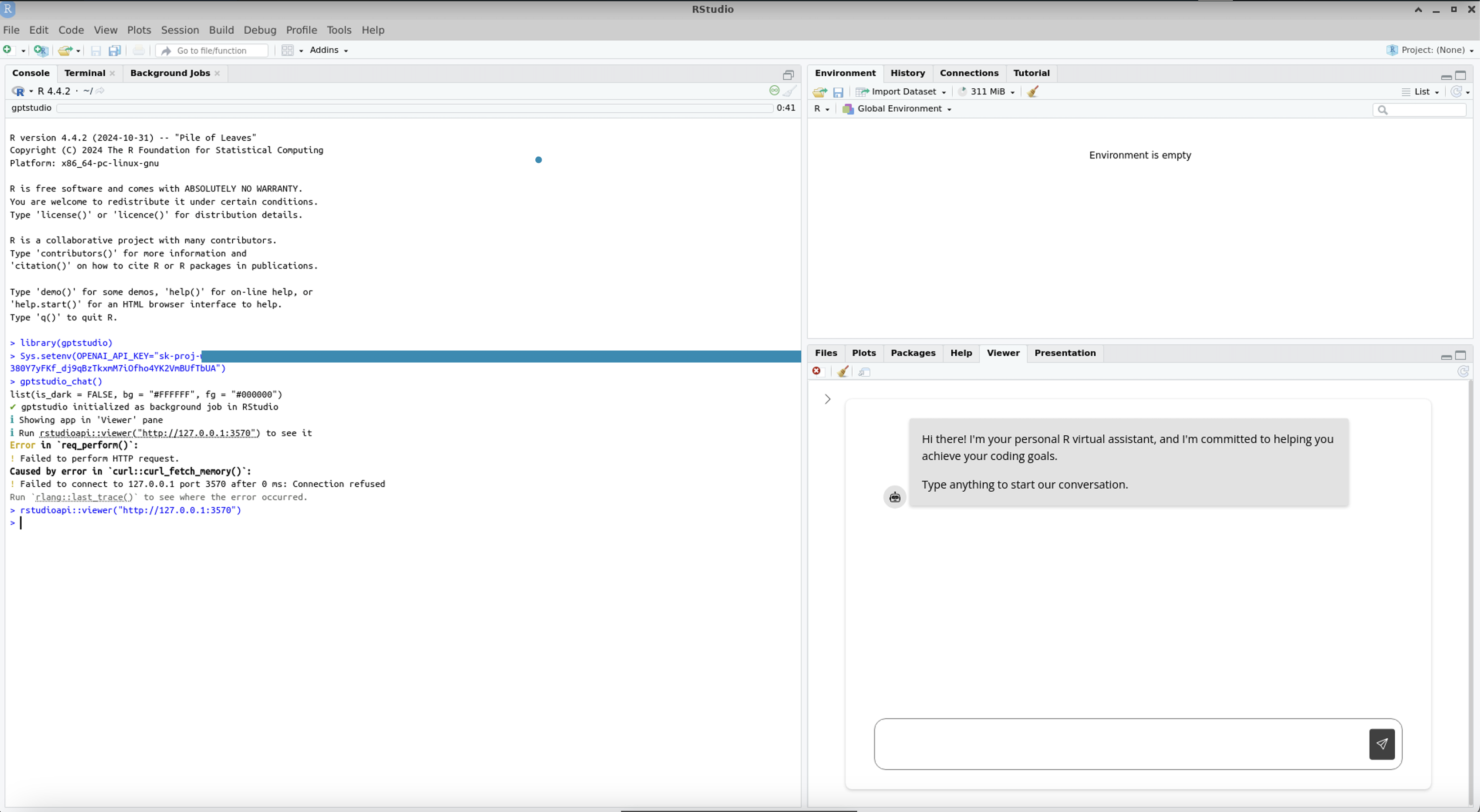
Steps to Start the gptstudio RShiny App in the Viewer Panel
Section titled “Steps to Start the gptstudio RShiny App in the Viewer Panel”-
Load the
gptstudioLibrarylibrary(gptstudio) -
Set the OpenAI API Key
You need an API key from OpenAI to use the gptstudio OpenAI features. You can obtain your key by signing up or logging into your account on the OpenAI website. After obtaining the key, set it using the following command:
Sys.setenv(OPENAI_API_KEY = "your_openai_api_key") -
Launch the Chat App
gptstudio_chat() -
Check the Port Number in the Error Message:
If an error occurs, note the port number shown in the error message. For example, the error message might indicate:
Failed to connect to 127.0.0.1 port 3570 after 0 ms: Connection refusedIn this case, the port is 3570.
-
Open the App in the Viewer Pane
Replace the port number accordingly:
rstudioapi::viewer("http://127.0.0.1:<port_number>")For example, if the port is 3570, use:
rstudioapi::viewer("http://127.0.0.1:3570")
These steps will launch the gptstudio RShiny app and display it in RStudio’s Viewer panel.
2. Regular RStudio Server Access
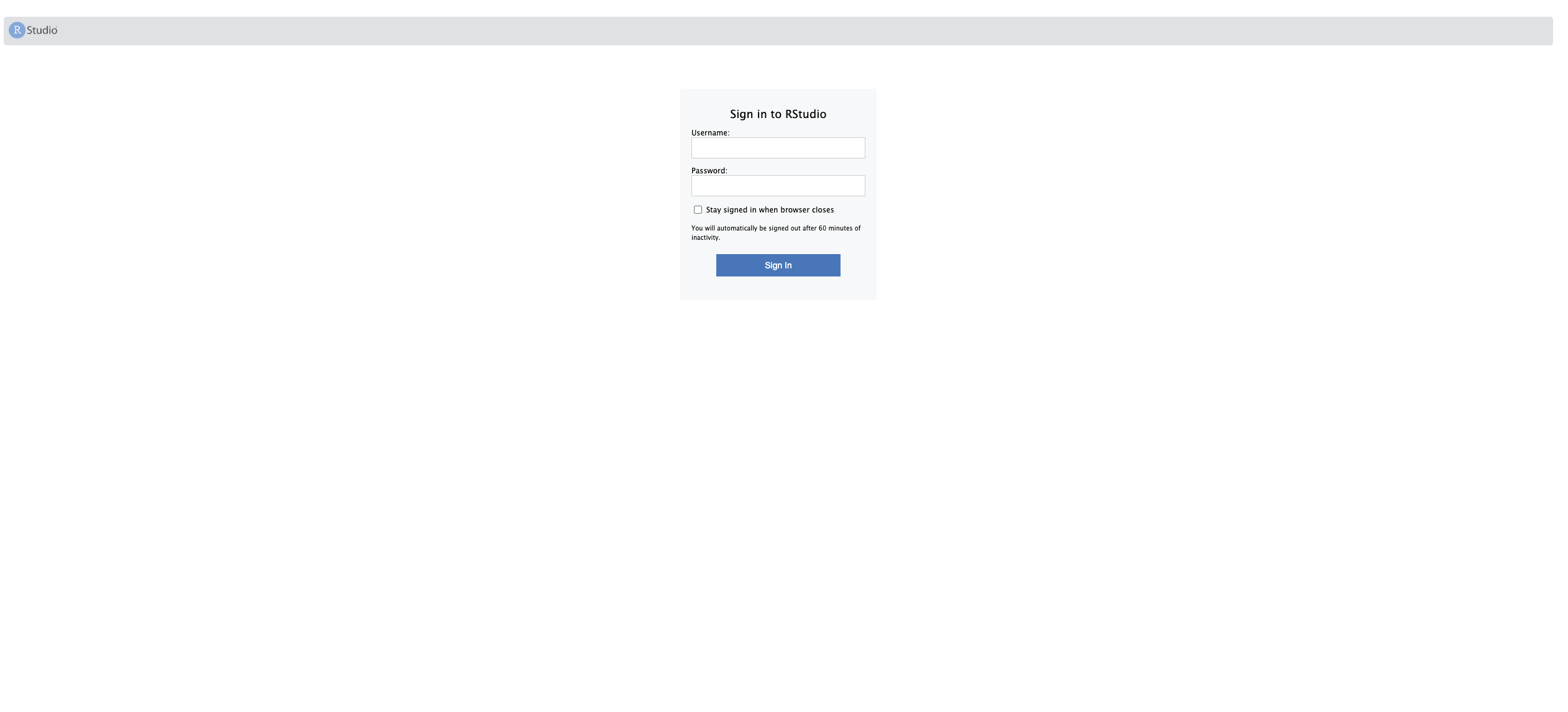
Section titled “2. Regular RStudio Server Access”After the EC2 instance is started, you can access RStudio Server via the public IP address.
For example, if the IP address is 10.11.12.13, enter the following URL in your browser
to access the login page as below:
Login Credentials
Section titled “Login Credentials”- Username:
ruser - Password: The EC2 instance ID (format:
i-0c7xxxxxxxxxxxxxx)
Automatic Redirect from HTTP to HTTPS
Section titled “Automatic Redirect from HTTP to HTTPS”All HTTP traffic is automatically redirected to HTTPS to ensure encrypted and secure communication.
Self-Signed Certificate
Section titled “Self-Signed Certificate”- The HTTPS connection uses a self-signed certificate.
- The first time you access the site, you may need to accept the self-signed certificate in your browser.
- This step is necessary to establish a secure connection.
IP Address Changes
Section titled “IP Address Changes”- If the IP address changes, a new self-signed certificate will be generated.
- You may need to accept the new certificate in your browser to re-establish a secure connection.
Additional Information
Section titled “Additional Information”- SSH Username:
ubuntu - SSH Port:
22