Connect to Linux GUI Desktop on AWS (Arm)
Steps to connect to the remote Linux GUI desktop
Section titled “Steps to connect to the remote Linux GUI desktop”Install Microsoft Remote Desktop
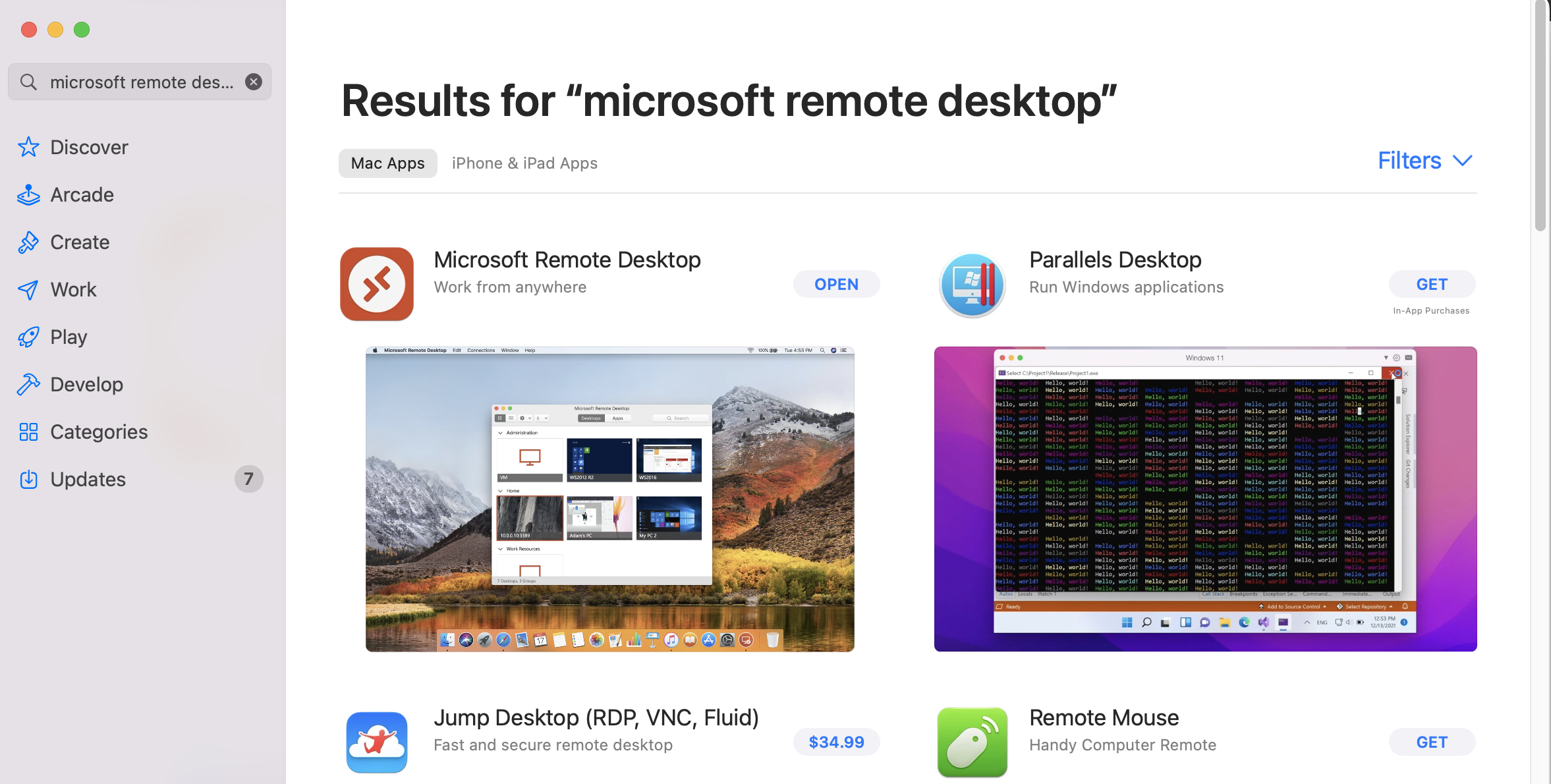
Section titled “Install Microsoft Remote Desktop”Microsoft Remote Desktop (Windows App) can be found in the Mac App Store (or use an RDP client on Windows/Linux).
Start Microsoft Remote Desktop
Section titled “Start Microsoft Remote Desktop”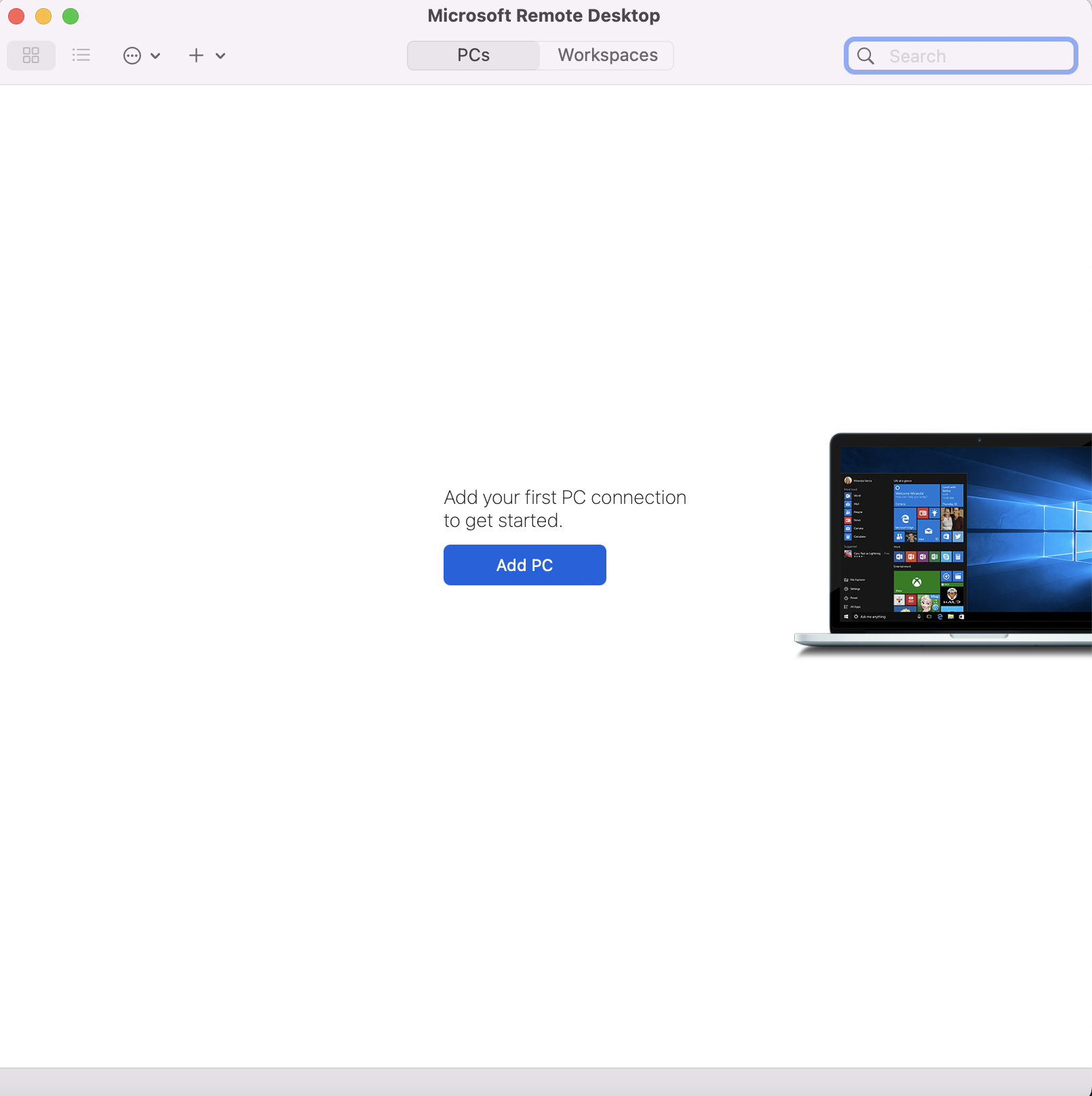
Add PC
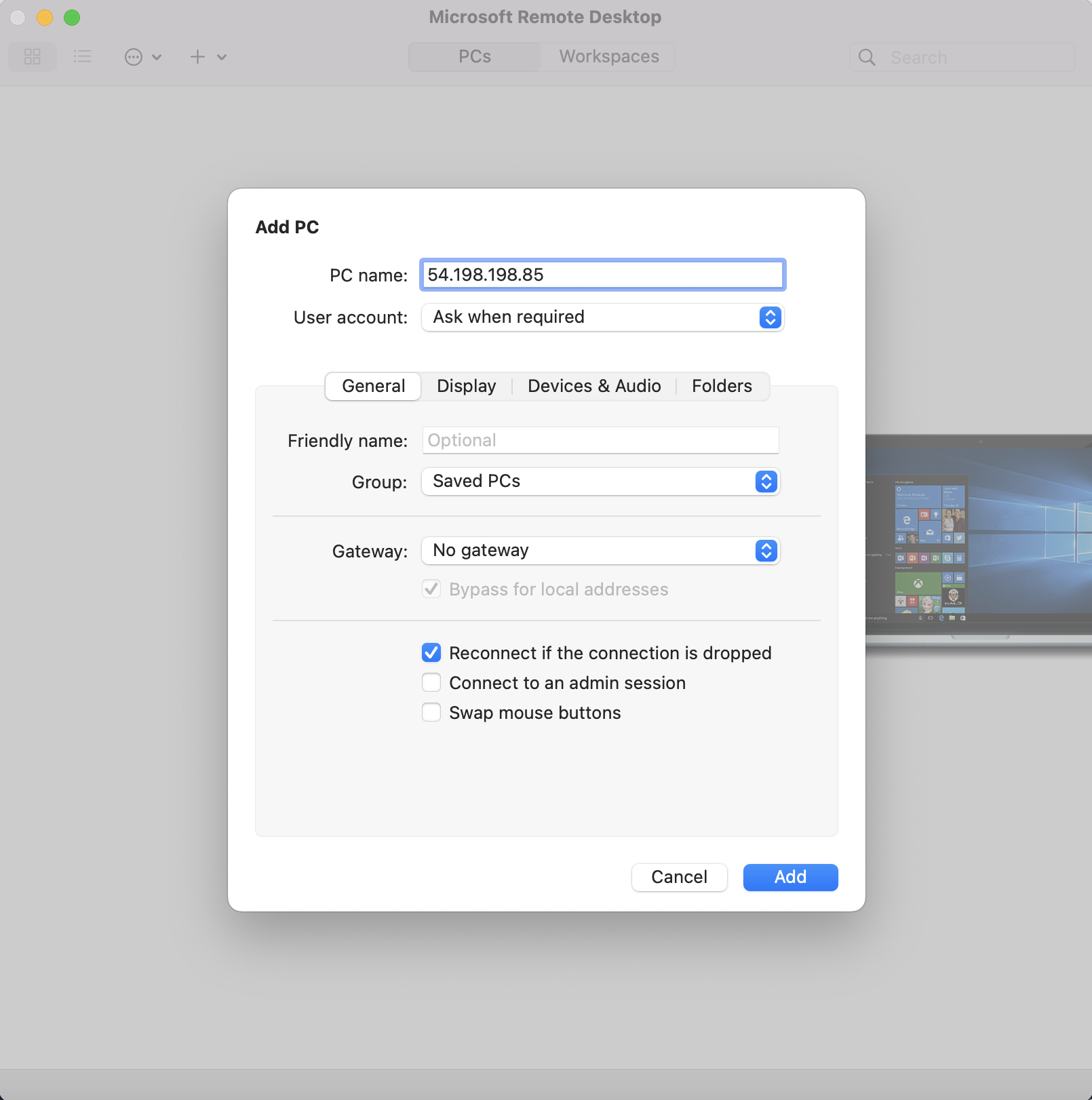
Section titled “Add PC”Enter the EC2 instance’s public IP address (for example, 54.198.198.85) as the PC name.
Add a User Account
Section titled “Add a User Account”The default username is elm and the password is your EC2 instance ID (for example, i-0c7fadc4dc193eca7).
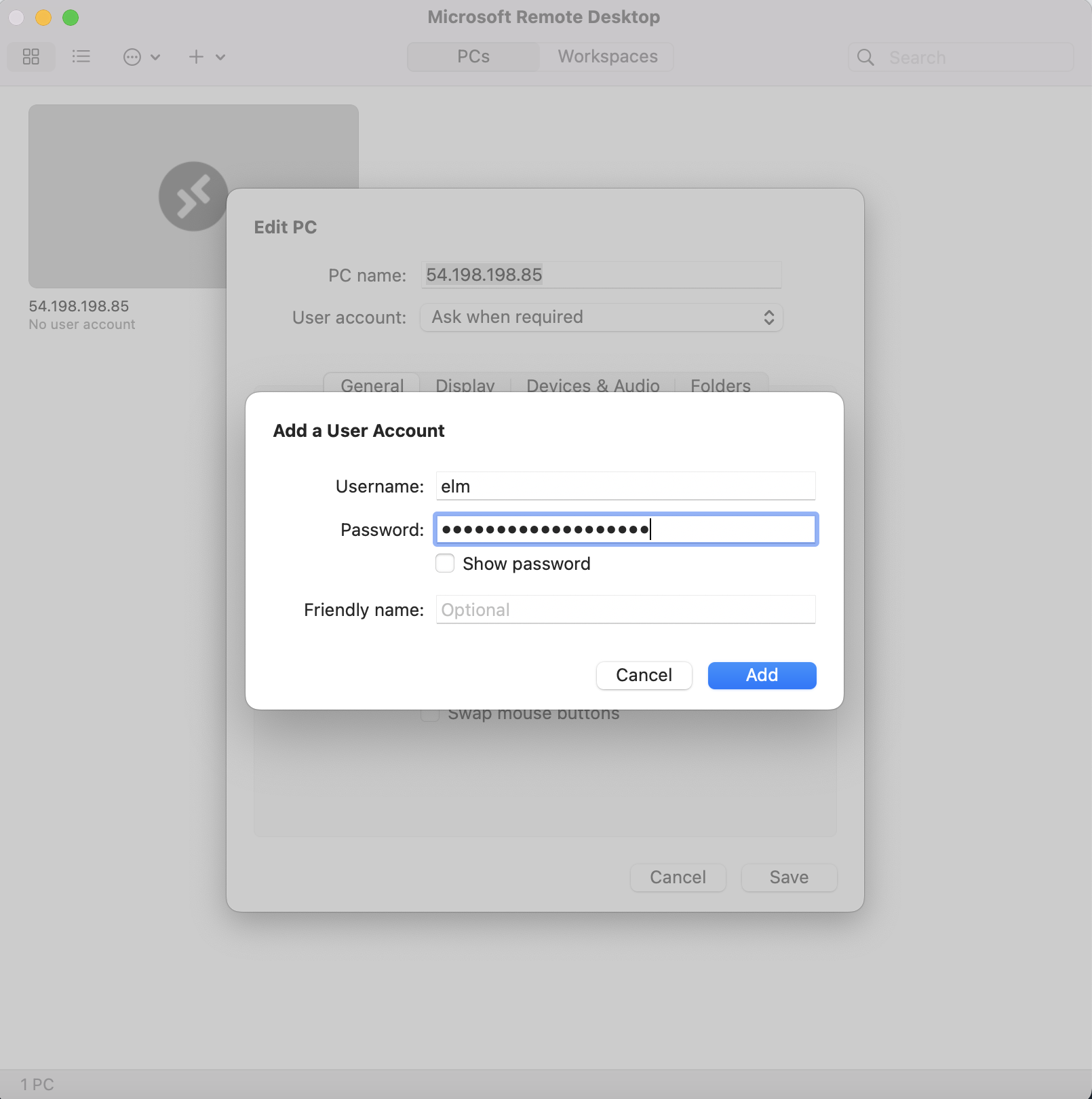
Accept the certificate
Section titled “Accept the certificate”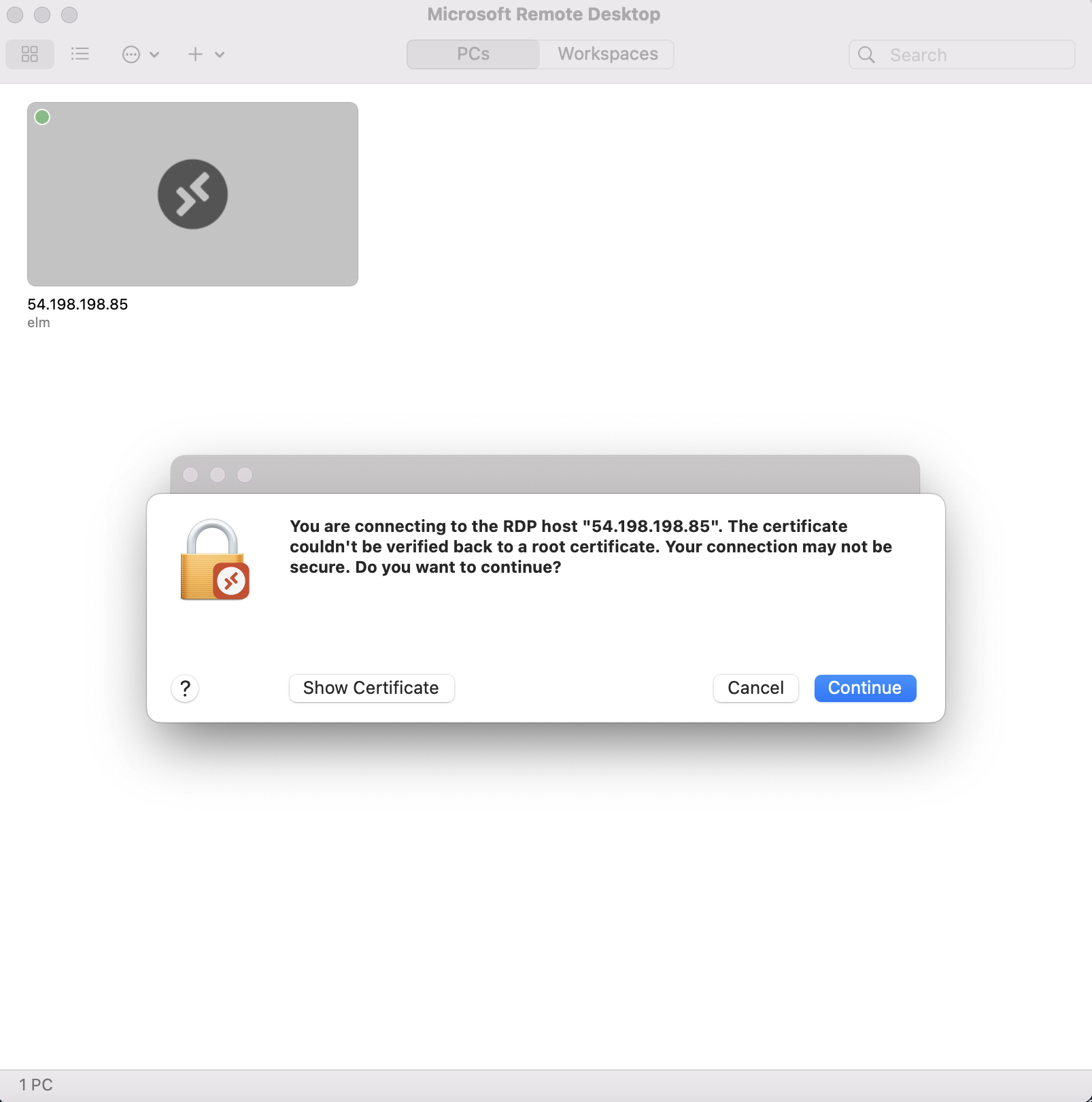
The PC is added
Section titled “The PC is added”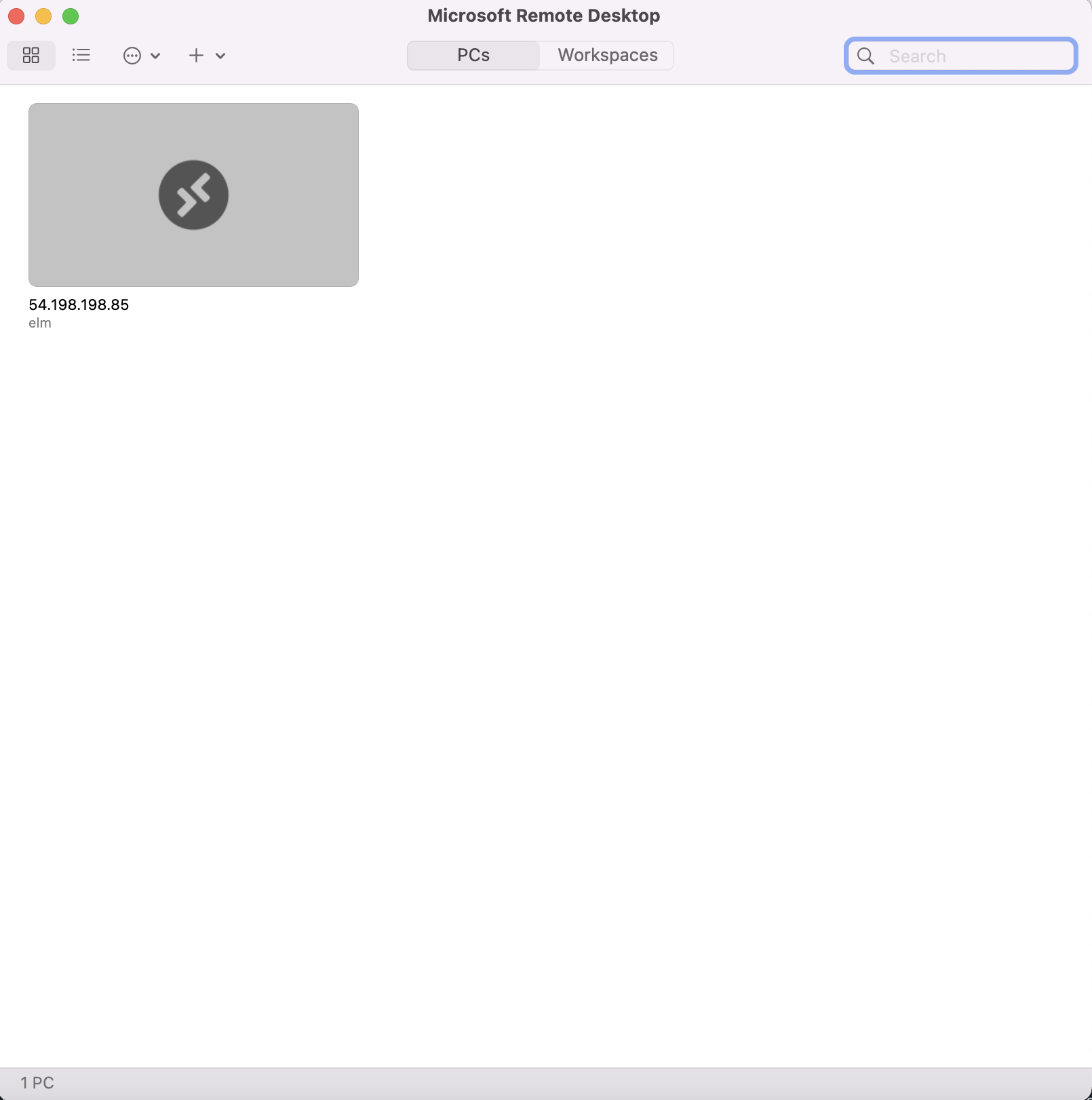
Connect to the remote Linux Desktop
Section titled “Connect to the remote Linux Desktop”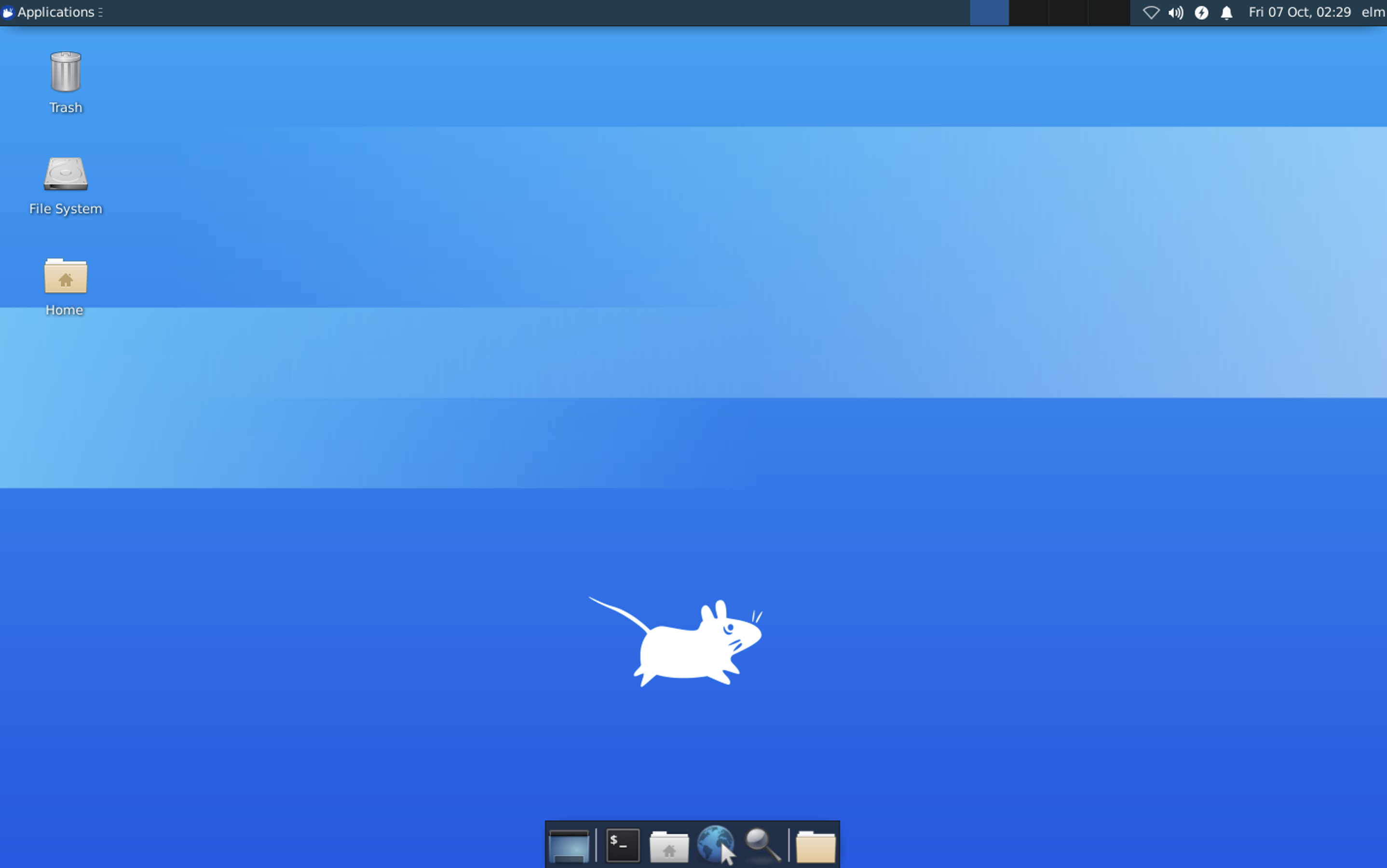
Log out of the Linux GUI Desktop
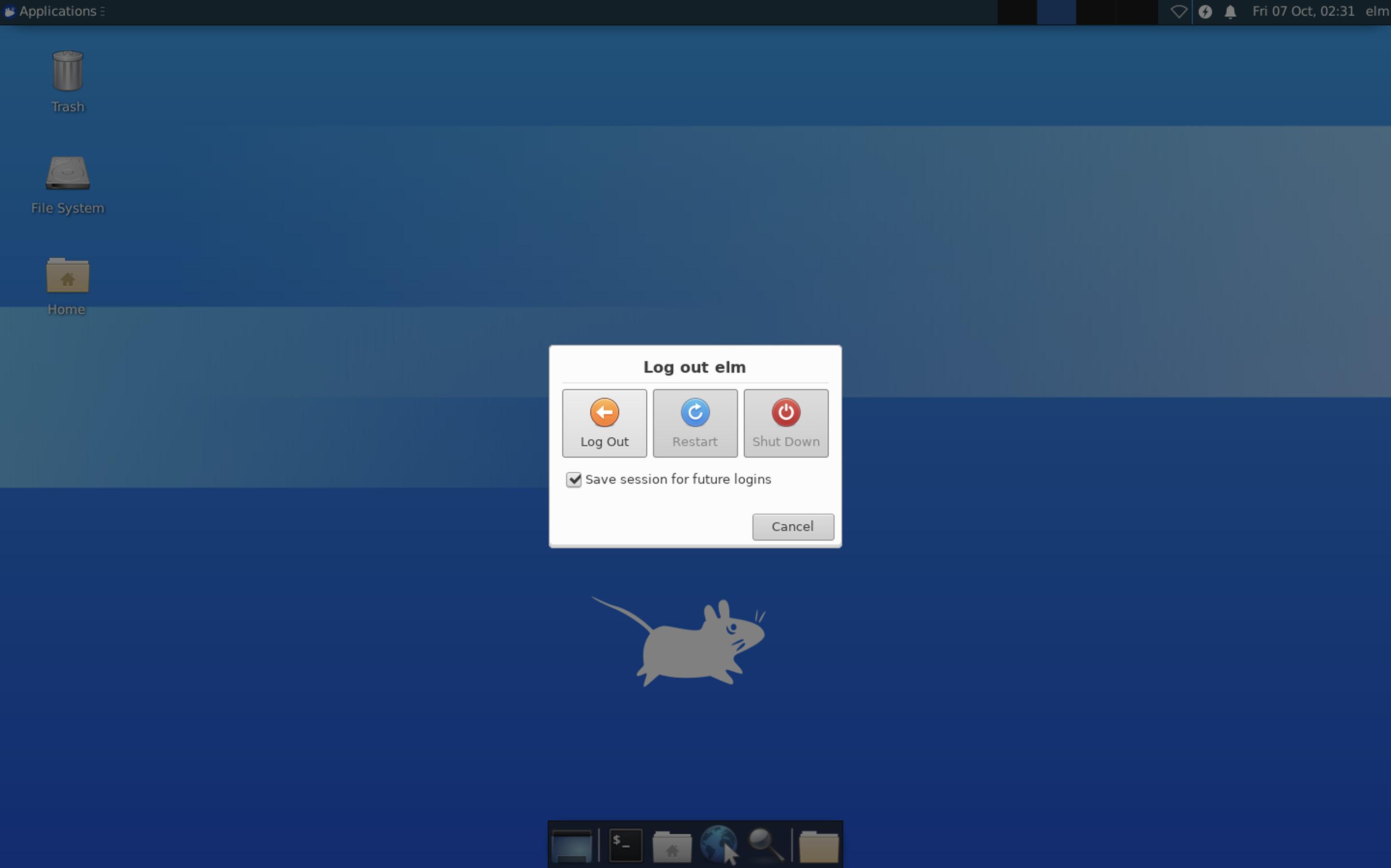
Section titled “Log out of the Linux GUI Desktop”Select Logout
Section titled “Select Logout”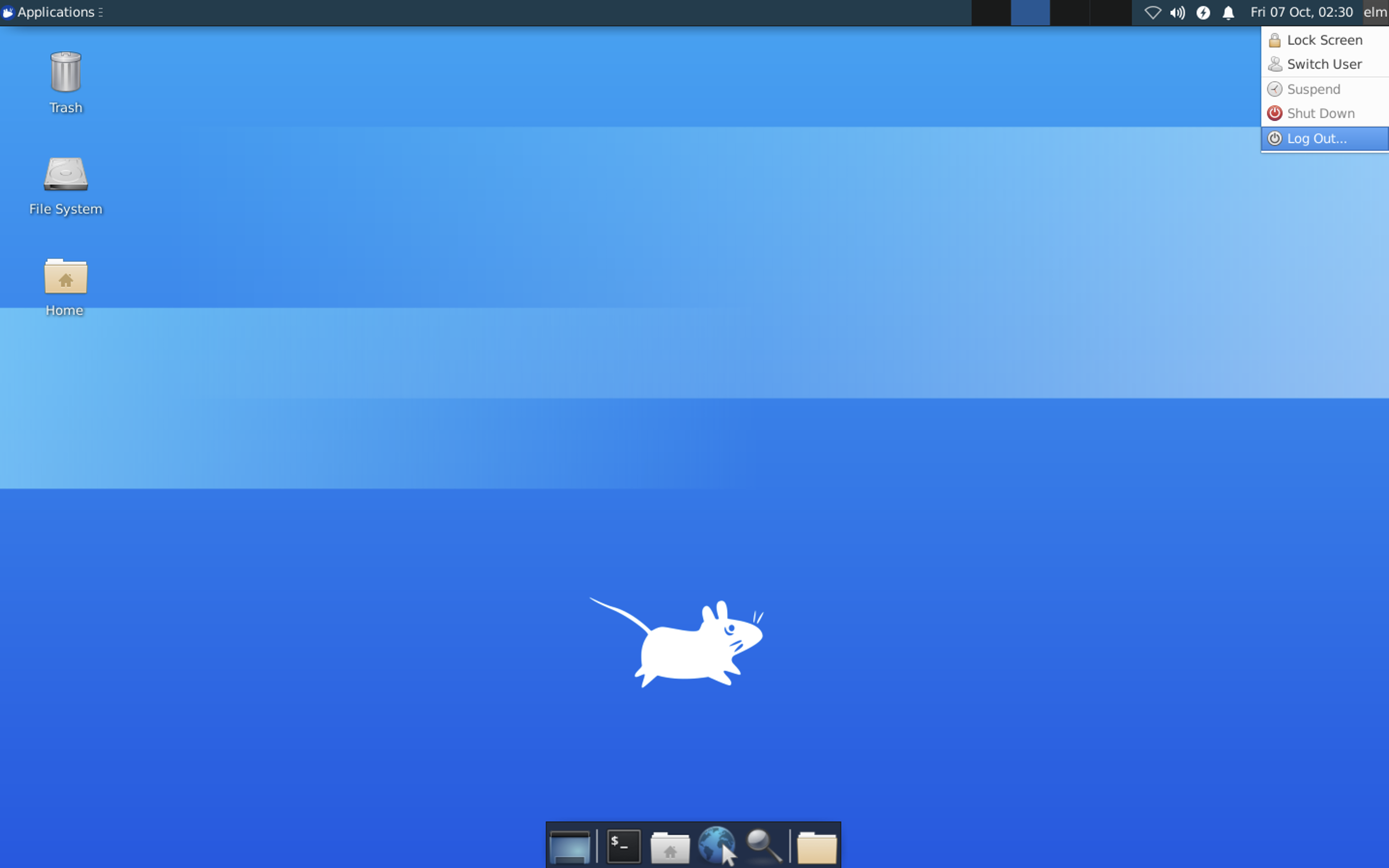
Click Logout
Section titled “Click Logout”